

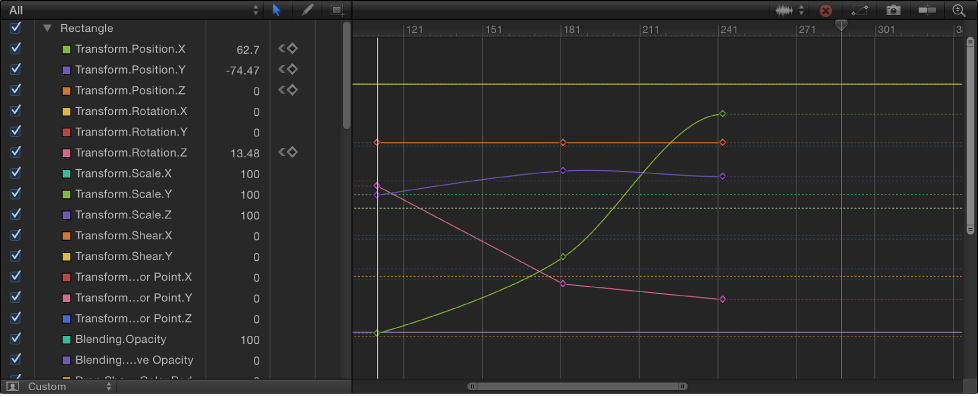
Displaying too many parameters in the Keyframe Editor can make the graph area difficult to read. You can limit the list of parameters displayed in the graph area by choosing a view option from the Show Curve Set pop-up menu.
Located at the top of the parameter list, the Show Curve Set pop-up menu lets you display built-in parameter curve sets as well as custom sets you build yourself. (For information about creating a custom curve set, see Create a custom curve view.) The Curve Set pop-up menu displays the name of the selected curve set (Animated, All, or Modified, for example).
Click the Show Curve Set pop-up menu, then choose All.
By default, only animated parameters display curves in the graph. Nonanimated parameters appear as dotted lines. Deselect a parameter’s activation checkbox to hide it in the graph. You can display or hide all parameters associated with a group or object by selecting or deselecting its checkbox.
Click the Show Curve Set pop-up menu, then choose Animated.
Parameters with more than one keyframe are displayed.
In the Inspector, click the Animation menu for the parameter, then choose Show in Keyframe Editor.
Note: The Animation menu is hidden until you place the pointer over the right side of a parameter row.
The keyframes appear in the Keyframe Editor and an untitled curve set is selected in the Show Curve Set pop-up menu.
Click the Show Curve Set pop-up menu, then choose Modified.
This option shows the parameters that have been modified from their default values, or are currently being modified (in the Canvas, Inspector, or HUD).
Click the Show Curve Set pop-up menu, then choose Active.
This option shows only parameters being modified in real time. For example, with Active selected, dragging an object in the Canvas displays its X, Y, and Z Position parameters in the Keyframe Editor.
Click the Show Curve Set pop-up menu, then choose a parameter type (such as Rotation, Opacity, or Retiming).
Only parameters of the chosen type are displayed.
In the Layers list, Canvas, or Timeline layers list, Shift-select the objects that contain keyframes you want to view.
In the Keyframe Editor, click the Show Curve Set pop-up menu, then choose a parameter type (such as Scale).
Only parameters of the chosen type are displayed for the selected objects.