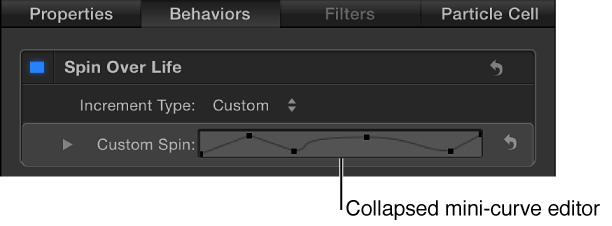

Mini-curve editors provide a way to animate parameters outside the Keyframe Editor’s interface using keyframes in a graph. Animations created in a mini-curve editor don’t appear in the Keyframe Editor.
Two Particle behaviors—Scale Over Life and Spin Over Life—have mini-curve editors in the Inspector (when the Increment Type parameter is set to Custom). Mini-curve editors are also present for paint objects, in the Stroke pane of the Shape Inspector.
By default, the mini-curve editor is collapsed and shows a scaled-down representation of the parameter curve.
Click the disclosure triangle next to the collapsed mini-curve editor in the Inspector.
The expanded mini-curve editor appears.
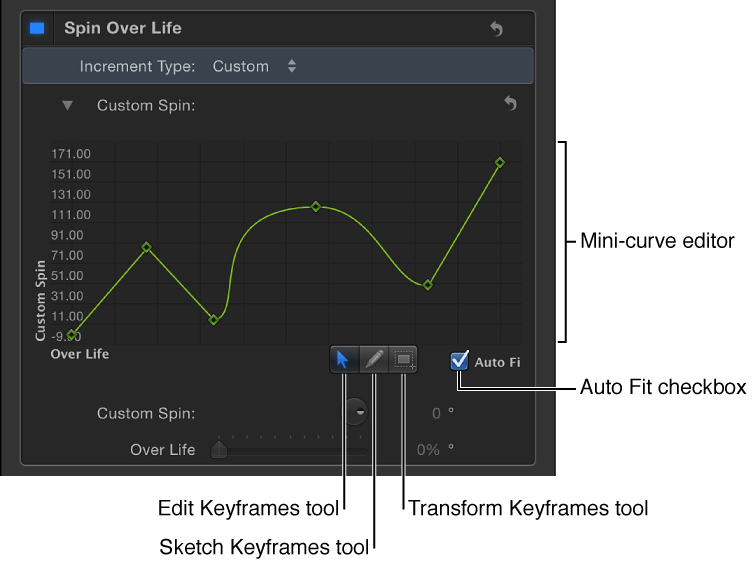
When expanded, the mini-curve editor shows a representation of the relevant animation curve. In the example above, the Over Life parameter is mapped to the X axis and the Custom Spin parameter is mapped to the Y axis.
The procedure for adding keyframes in a mini-curve editor is slightly different than adding them in the full-sized Keyframe Editor.
Do one of the following:
Double-click the curve.
Option-click the curve.
Control-click the curve, then choose Add Keyframe from the shortcut menu.
Double-click the keyframe in the mini-curve editor in the Inspector.
Its value field is activated.
Enter a value in the value field, then press Return.
Note: To dismiss an active value field without making changes, press Esc.
Select the Auto Fit checkbox (located beneath the lower-right corner of the mini-curve editor).
The animation curve is scaled to fit within the confines of the mini-curve editor.
The mini-curve editor provides the Edit Keyframes, Sketch Keyframes, and Transform Keyframes tools, and each functions in the same manner as in the Keyframe Editor. For more information on using the Edit Keyframes tool, see Modify keyframes. For more information on using the Sketch Keyframes tool, see Manually draw an animation curve. For more information on using the Transform Keyframes tool, see Transform multiple curve segments simultaneously.