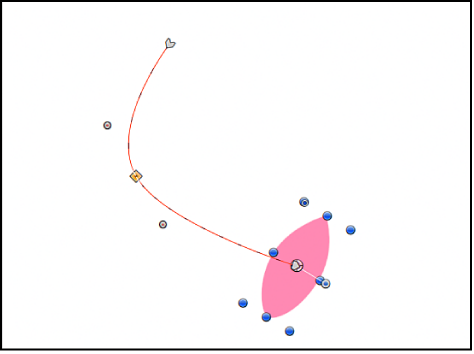

You can modify an animation path by adding keyframes to or deleting keyframes from the path, by dragging keyframes on the path, or by dragging a path segment between two adjacent keyframes.
Additionally, you can set the keyframe type to curved or angled, changing the shape of the path.
When you drag a keyframe in the Canvas, the frame number corresponding to that keyframe and its X, Y, and Z position values are displayed in the status bar (above the Canvas).
Double-click or Option-click the animation path.
A new keyframe point is added. By default, keyframe points are curved Bezier points.
After you add keyframe to an animation path, you can change its location in Canvas, thereby changing the shape of the path.
Drag a keyframe point to a new position in the Canvas.
The shape of the animation path changes, based on the new position of the keyframe point.
Drag the path segment between the two selected keyframe points.
Note: You can also Shift-select the keyframe points that bound the path segment or segments you want to move, then drag one of the selected keyframe points (or the segment between two adjacent keyframe points).
Do one of the following:
Holding down the Option and Command keys, drag a keyframe point on the animation path.
Holding down the Option and Command keys, drag a portion of the animation path between two keyframe points.
Holding down the Option and Command keys, drag the object’s center onscreen control.
The animation path and the object are moved to a new position in the Canvas, and no new keyframes are created.
When you move an object on an animation path to a new position in the Canvas, a portion of the animation path is repositioned along with the object.
Do any of the following:
Reposition an object without adding a new keyframe: Drag the center onscreen control of the object.
If the object is on a keyframe point, the object and the keyframe point are moved to a new position in the Canvas. If the object is between two keyframe points, the object and the two adjacent keyframe points are moved to a new position in the Canvas.
Reposition an object and add a new keyframe: Make sure the object is positioned on the animation path between two keyframe points, then drag the object (but not its center onscreen control).
The object is moved to a new position in the Canvas, and a new keyframe point is created at that position.
Note: If the object is on a keyframe point, dragging the object does not create a new keyframe; rather, the current keyframe point is moved along with the object to a new position in the Canvas.
By default, keyframe points on an animation path use Bezier curves. You can modify the curve angle by dragging tangent handles or by converting Bezier keyframe points to linear points.
Do any of the following:
Change the angle of a Bezier keyframe point: Select a Bezier keyframe point in the Canvas, then drag its tangent handles.
Convert a smooth Bezier keyframe point to a sharp linear point: Control-click a keyframe point in the Canvas, then choose Linear from the shortcut menu.
The tangent handles of the keyframe point disappear, leaving a sharply angled linear keyframe. To quickly convert the keyframe point back to a curved Bezier point with tangent handles, Command-drag the keyframe.
Convert a sharp linear keyframe point to a smooth Bezier point: Control-click the keyframe point and choose Smooth from the shortcut menu.
Tangent handles appear on the Smooth keyframe point, and the animation path becomes curved. To quickly convert a curved Bezier point back to a sharply angled linear point, Command-click the keyframe.
Note: The Very Smooth option is not available for animation paths and remains dimmed in the shortcut menu.
For more information on manipulating Bezier points, see Complex shapes and masks overview.
Deleting a keyframe point modifies the shape of the animation path; disabling a keyframe point temporarily removes it from the path; locking a keyframe point prevents editing.
Do any of the following:
Delete a keyframe point: Control-click a keyframe point in the Canvas, then choose Delete Point from the shortcut menu (or select the keyframe point, then press Delete).
The keyframe is removed, changing the shape of the animation path.
Disable a keyframe point: Control-click a keyframe point in the Canvas, then choose Disable Point from the shortcut menu.
The keyframe is disabled and no longer influences the shape of the animation path. To re-enable the keyframe, Control-click the disabled keyframe, then choose Enable Point from the shortcut menu.
Lock a keyframe point: Control-click a keyframe point in the Canvas, then choose Lock Point from the shortcut menu.
The keyframe is locked and can no longer be edited. To unlock the keyframe, Control-click the locked keyframe point, then choose Unlock Point from the shortcut menu.