Using the Animation menu, you can create or modify a rig while you’re modifying specific parameters in your project.
In the Inspector, click the Animation menu for the parameter (the downward arrow that appears when you place the pointer over the right side of a parameter row), choose Add to Rig > Rig, then choose a rig and a specific widget from the submenus.
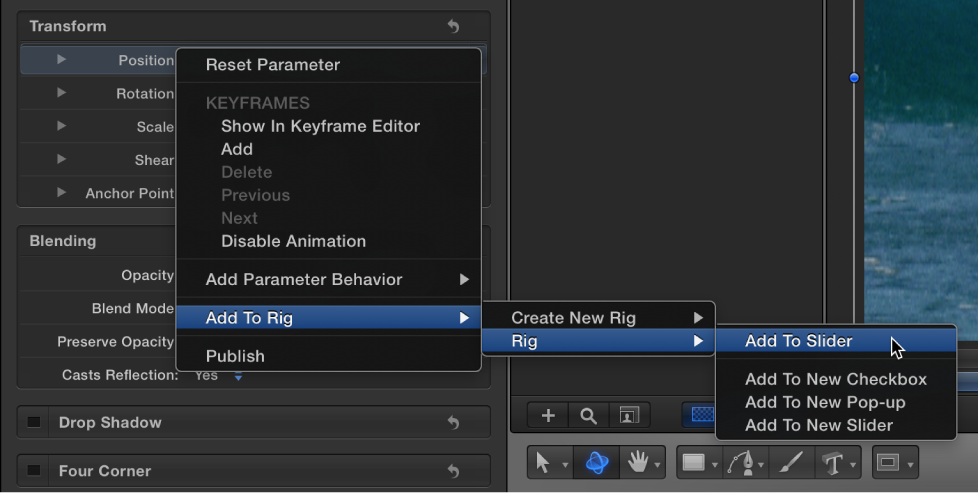
The parameter is added to the selected widget in the rig.
Note: You can also create a rig via this submenu.
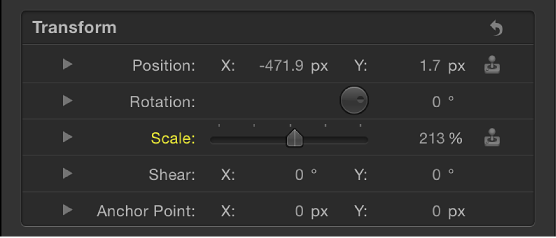
In the Inspector, click the Animation menu (the downward arrow that appears when you place the pointer over the right side of a parameter row) of the parameter to remove, then choose Remove from Widget [name of widget].
The parameter is removed from the widget.
Note: Parameters can be removed from a widget in the parameter list in the Widget Inspector or in the Inspector containing the original parameter.
In the Inspector, click the Animation menu (the downward arrow that appears when you place the pointer over the right side of a parameter row) for the parameter, then choose Reveal Widget [name of widget].
The Inspector displays the Widget pane.
In the Widget inspector (not the Rig Inspector), click the Animation menu (the downward arrow that appears when you place the pointer over the right side of a parameter row) for the parameter, then choose Reveal Target Parameter.
The Inspector containing the original parameter is opened and the parameter name briefly blinks yellow.

Note: The Reveal Target Parameter command can be especially helpful when a widget is driving multiple similarly named parameters from different objects. This command allows you to identify the parent object.