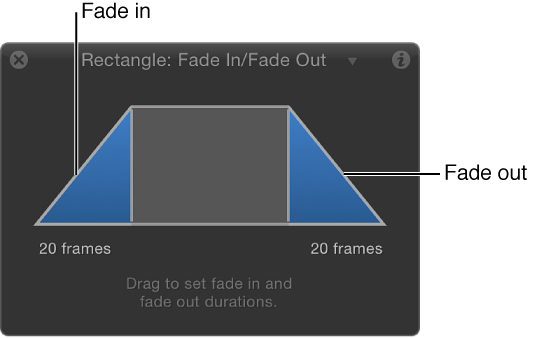

The Fade In/Fade Out behavior lets you dissolve into and out of any object by ramping the opacity of the object from 0 percent to 100 percent at the start, and then back to 0 percent at the end. You can eliminate the fade-in or fade-out effect by setting the duration of the Fade In Time or Fade Out Time to 0 frames.
Note: This behavior is multiplicative. This means that the Fade In and Fade Out parameters are multiplied by the object’s current opacity to produce the resulting level of transparency.
The Fade In/Fade Out behavior is useful for introducing and removing animated elements. For example, you can apply the Fade In/Fade Out behavior to text that moves across the screen to make it fade into existence, and then fade away at the end of its duration.
Note: The Fade In/Fade Out behavior cannot be applied to a camera or light.
Adjust this behavior using the controls in the Behaviors Inspector:
Fade In Time: A slider defining the duration, in frames, over which the object fades in from 0 to 100 percent opacity from the first frame of the object. A duration of 0 frames results in a straight cut into the object, making it appear instantly.
Fade Out Time: A slider defining the duration, in frames, over which the object fades out from 100 to 0 percent opacity at the last frame of the object. A duration of 0 frames results in a straight cut-away from the object, making it disappear instantly.
Start Offset: A slider that lets you delay the beginning of the behavior’s effect relative to its first frame in the Timeline. Adjust this parameter to make the behavior start later. This parameter value is measured in frames.
End Offset: A slider that lets you offset the end of the behavior’s effect relative to its last frame in the Timeline, in frames. Adjust this parameter to make the behavior stop before the end of the behavior bar in the Timeline.
The HUD lets you set the Fade In and Fade Out durations with a graphical control. Drag anywhere in the shaded area of the Fade In or the Fade Out ramp to adjust the duration of the effect.
Note: Continue dragging beyond the limits of the graphical HUD control to extend the durations of the Fade In or Fade Out.