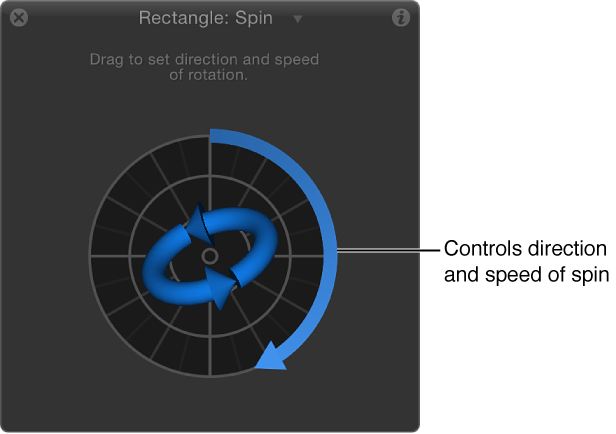
Affect Subobjects: A checkbox (available when Spin is applied to an object that contains multiple objects—such as a group, particle emitter, or text) that, when selected, causes each object in the layer or group to rotate as an individual object. When this checkbox is deselected, the entire layer or group spins uniformly.
Increment: A pop-up menu that sets how the behavior’s effect progresses over its duration in the Timeline. There are two choices:
Continuous Rate: Uses the Spin Rate parameter to spin the object by a steady number of degrees per second.
Ramp to Final Value: Spins the object for the number of degrees specified in the Spin To parameter over the behavior’s duration in the Timeline.
Spin Rate/Spin To: A dial to set the speed at which the object spins. When Increment is set to Continuous Rate, Spin Rate defines a continuous rate of spin in degrees per second. When Increment is set to Ramp to Final Value, Spin To defines a number of degrees to spin over that object’s duration. Negative values result in clockwise motion; positive values result in counterclockwise motion.
Axis: A pop-up menu that sets whether the object spins about the X, Y, or Z axis. You can also choose Custom, which yields additional Longitude and Latitude parameters. The following illustration shows the Spin behavior’s HUD control set to the Z axis.
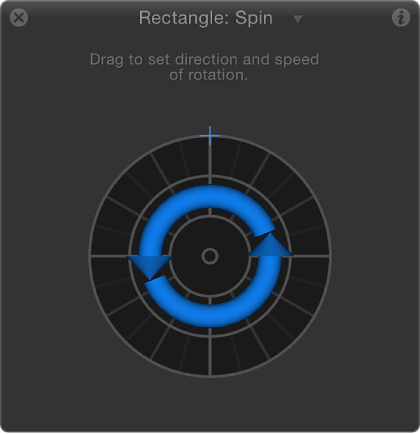
When Axis is set to Custom, additional Latitude and Longitude controls become available. These controls allow the object to spin at an angle (not locked to the X, Y, or Z axes).
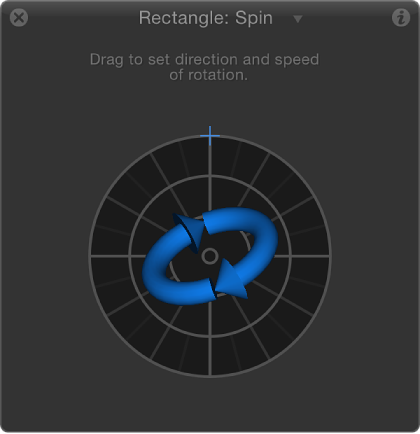
The following image shows how longitude and latitude relate to the Spin HUD control.
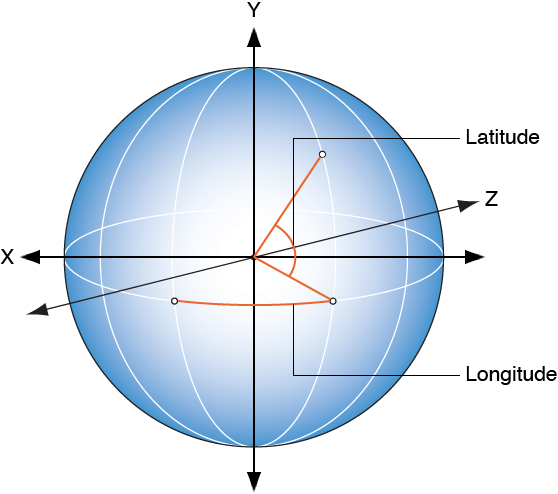
Latitude/Longitude: A dial (available when Axis is set to Custom) that specifies the axis of rotation.