Apply a behavior to an object
Do one of the following:
Drag a behavior from the Library stack to an appropriate object in the Canvas, Layers list, or Timeline.
An advantage to applying behaviors from the Library is the ability to preview the animation created by the behavior in the Library preview area.
Note: When applying a behavior to a camera or light, it’s usually easier to drag the behavior to a camera or light in the Layers list or Timeline than to its wireframe object in the Canvas.
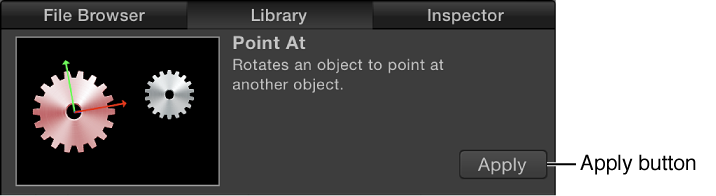
Select an object in the Canvas, Layers list, or Timeline, then select a behavior from the Library stack and click Apply in the preview area.
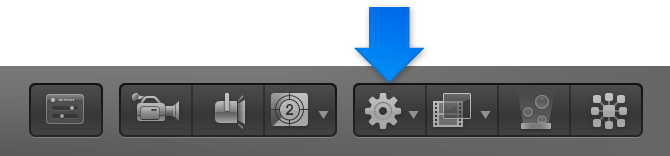
Select an object in the Canvas, Layers list, or Timeline, click the Add Behavior pop-up menu in the toolbar, then choose a behavior from the menu.