
The Throw behavior is the simplest way to set an object in motion. Controls let you adjust the speed and direction of a single force that’s exerted on the object at the first frame of the behavior. After this initial force is applied, the object continues drifting in a straight line at the same speed, for the duration of the Throw behavior.
A simple example of using the Throw behavior is to send a series of offscreen objects moving across the screen. When used in conjunction with other behaviors such as Grow/Shrink and Fade In/Fade Out, you can create sophisticated moving elements without keyframing a single parameter.
The Throw behavior is also useful when you’re moving an object through a simulation. For example, you might move the object past other objects that have Attractor or Repel behaviors applied to them. Because the Throw behavior only applies a single force to move the target object at the initial frame of the behavior, any other behaviors that interact with the target object have potentially greater influence over its motion.
Important: The Throw behavior does not apply a continuous force, nor can you create changes in direction or speed, because Throw cannot be keyframed. To create keyframed changes in direction or speed, use the Wind behavior. To create a more complex animation path, use the Motion Path behavior.
Adjust this behavior using the controls in the Behaviors Inspector:
Affect Subobjects: A checkbox, available when this behavior is applied to an object that contains multiple child objects, such as a group, a particle emitter, a replicator, or a text layer. When this checkbox is selected, all objects enclosed in the parent object are affected individually. When this checkbox is deselected, all objects enclosed in the parent object are affected by the behavior together.
Increment: A pop-up menu that sets how the behavior’s effect progresses over its duration in the Timeline. There are two choices:
Continuous Rate: Sets the speed of the object at a steady number of pixels per second, specified in the Throw Velocity parameter.
Note: When the Canvas displays a nonsquare pixel image, the vertical rate is in pixels per second, and the horizontal rate is the perceptual equivalent.
Ramp to Final Value: Moves the object from its original position to the specified distance (in pixels) in the Throw Distance parameter.
Throw Velocity/Throw Distance: A slider that sets either velocity or distance, depending on the setting in the Increment pop-up menu. When Increment is set to Continuous Rate, the Throw Velocity slider sets a continuous speed for the object to move in X, Y, or Z space. When Increment is set to Ramp to Final Value, the Throw Distance slider sets a total distance (in pixels) for the object to travel in X, Y, and Z space over its duration. The standard slider is limited to 100 pixels. Use the value slider to enter values greater than 100.
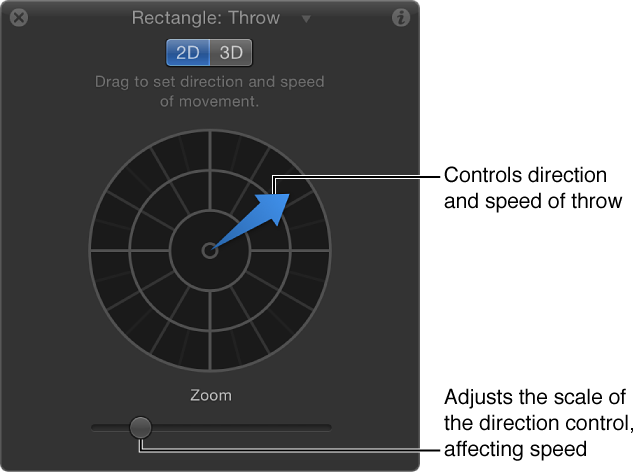
The 2D HUD lets you specify the direction and speed of the Throw behavior by dragging an arrow in a circular region. The direction of the arrow defines the direction of movement in X and Y space, and the length of the arrow defines speed (velocity). A slider adjusts the scale of the HUD control, increasing or decreasing the effect of the direction/speed control.
When you click the 3D button, additional 3D controls become available. The center arrow now defines the direction the object is thrown in 3D space (X, Y, and Z axes). The Speed slider lets you increase or decrease the velocity of the thrown object.
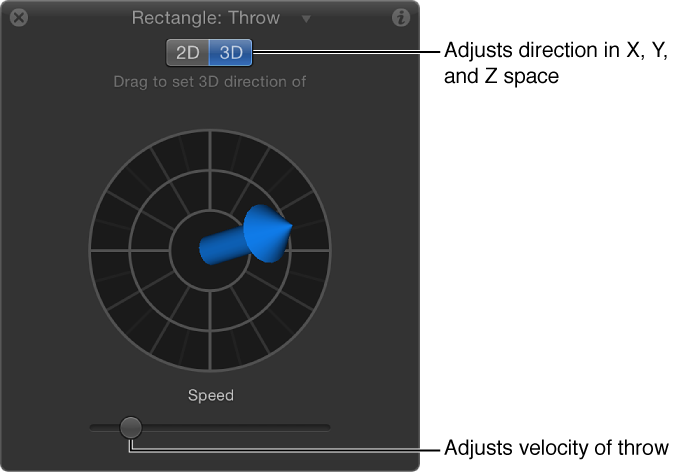
In the 2D and 3D Throw HUDs, press the Shift key while dragging the arrow to constrain it to 45-degree angles. In the 2D HUD, press the Command key to change the arrow’s direction without affecting its length.
Note: The maximum speed you can define with the HUD is not the maximum possible speed. Higher values can be entered into the Throw Velocity/Throw Distance parameter in the Behaviors Inspector.