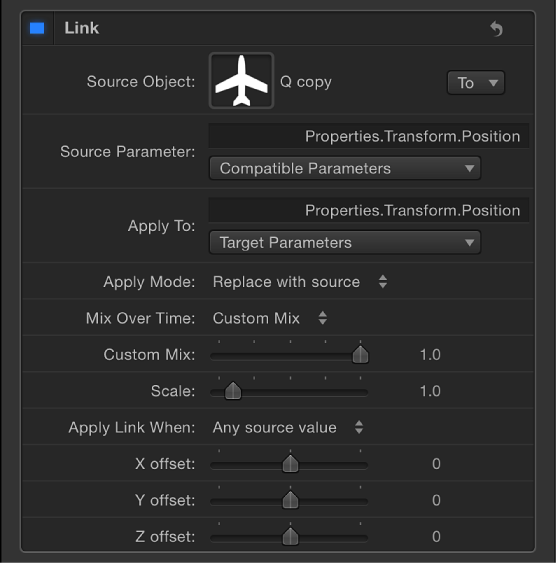

The Link behavior forces the value of one parameter to match that of another “linked” parameter. The source parameter can be attached to the same object or to another object. The linked parameters must contain numerical data. Parameters controlled by checkboxes, menus, and other non-numeric values cannot be linked. The linked parameters also must contain the same number of attributes. You cannot link a compound parameter such as Scale X-Y-Z to a parameter such as Opacity, which has only one slider. You can however, link a compound parameter such as Scale X-Y-Z to Position X-Y-Z.
The values of the source parameter can be scaled to more accurately apply to the destination parameter. For example, a source parameter with a range of 1–100 can be scaled when applied to a parameter with a range of 0–1. The values can also be offset from the source, and the effect can be mixed with the destination value to create different effects.
The Link behavior can be applied to a parameter animated with behaviors or keyframes; however, the Link behavior does not affect the parameter when the Start Values or End Values are zero.
When using the Link behavior to control an object’s position parameter, the linked coordinates are based on the center point of the current group. So when an object is linked to another object in the same group, it shares an identical position. However, if the source object is in a different group, the coordinates might appear offset in space.
If your goal is to match an identical position across groups with different center points, you can create an invisible dummy object in the group containing the source, link it to the source object, then use the Match Move behavior to copy the dummy object’s position to that of the intended target. Match Move compensates for inter-group position offsets and provides the option to attach one object to another or to mimic the source object’s transformations. For more information about the Match Move behavior, see Match moving overview.
You can also link to the group’s coordinates instead of the object’s, and use the Offset parameters in the Link behavior to obtain the position you want. However, if that group is subsequently added to another group, the linked object might not move as expected.
Note: When a link behavior is added, it’s not enabled by default. To activate the behavior, click the activation checkbox beside the behavior name in the Behaviors Inspector.
Adjust this behavior using the controls in the Behaviors Inspector:
Source Object: An object well that defines the source object in which the source parameter resides. Click the To pop-up menu to select a source object in the current project.
Source Parameter: A pop-up menu showing the parameter that serves as the source for the Link behavior. Use this menu to select a new source parameter. Only parameters with the same value type and number of attributes as the parameter selected in the Apply To (Target Parameters) pop-up menu appear here.
Note: When possible, Source Parameter defaults to the parameter chosen in the Apply To row (described below).
Important: Changing the Apply To (Target Parameters) setting changes which parameters appear in the Source Parameter pop-up menu. If you cannot find the parameter you’re looking for, you might need to choose a Target Parameter to which you can link.
Apply To: A pop-up menu showing the parameter affected. Use this menu to reassign the behavior to another parameter.
Apply Mode: A pop-up menu that sets how the values from the source parameter affect the target parameter. The choices include:
Add to source: Adds the source parameter value to the existing value of the target parameter.
Multiply by source: Multiplies the source parameter value with the existing value of the target parameter.
Replace with source: Replaces the existing value of the target parameter with that of the source parameter.
Mix Over Time: A pop-up menu that sets how rapidly the source parameter values begin to affect the target parameter. Options include: Ease In, Ease Out, Ease In/Out, Accelerate, Decelerate, Accelerate/Decelerate, and Custom Mix.
Mix Time Range: A slider (available when the Mix Over Time pop-up menu is set to an Ease or Acceleration option) that controls the number of frames over which the ease or acceleration occurs.
Tip: Ease In and Accelerate begin at the In point of the Link behavior; Ease Out and Decelerate end at the Out point of the Link behavior. Therefore, you can trim the Link behavior in the Timeline to specify where the ease or acceleration begins or ends.
Custom Mix: A slider (available when the Mix Over Time parameter is set to Custom Mix) that can be animated to create a user-determined mix between the source and target parameter values.
Scale: A slider that specifies a value to be multiplied with the Source Parameter before it is applied to the target.
Apply Link When: A pop-up menu that limits when values from the source are applied to the target. There are five choices:
Any source value: No limits are placed on the source parameter values. An offset slider for each setting associated with the source parameter appears at the bottom of the Behaviors Inspector. If the source parameter has a single slider, such as Opacity, a single offset slider appears. If the source parameter has multiple sliders, such as Position X-Y-Z, offset sliders for each of those settings appear.
Source value above minimum: The link applies only when the source value exceeds a defined minimum value. If the source value falls below the defined minimum, the link behavior stops. When selected, the Clamp Source Values Within Range checkbox as well as offset and minimum sliders for each setting associated with the source parameter appear at the bottom of the Behaviors Inspector. If the source parameter has a single slider, such as drop shadow Blur, an offset and a minimum slider appear for that setting. If the source parameter has multiple sliders, such as Scale X-Y-Z, offset and minimum sliders appear for each of those settings.
Source value below maximum: The link applies only when the source value stays below a defined maximum value. If the source value exceeds the defined maximum, the link behavior stops. When selected, the Clamp Source Values Within Range checkbox as well as offset and maximum sliders for each setting associated with the source parameter appear at the bottom of the Behaviors Inspector. If the source parameter has a single slider, such as shape Roundness, an offset and a maximum slider appear for that setting. If the source parameter has multiple sliders, such as Rotation X-Y-Z, offset and maximum sliders appear for each of those settings.
Source value between min and max: The link applies only when the source value stays within a defined range. If the source value falls below the defined minimum, or exceeds the defined maximum, the link behavior stops. When selected, the Clamp Source Values Within Range checkbox as well as offset, minimum, and maximum sliders for each setting associated with the source parameter appear at the bottom of the Behaviors Inspector. If the source parameter has a single slider, such as shape Feather, one set of three sliders (offset, minimum, and maximum) appears for that setting. If the source parameter has multiple sliders, such as Fill Color (red, green, blue), sets of three sliders appear for each of those settings.
Source value outside min and max: The link applies only when the source value stays outside of a defined range. If the source value falls above the defined minimum, or below the defined maximum, the link behavior stops. When selected, the Clamp Source Values Within Range checkbox as well as offset, minimum, and maximum sliders for each setting associated with the source parameter appears at the bottom of the Behaviors Inspector. If the source parameter has a single slider, such as outline Width, one set of three sliders (offset, minimum, and maximum) appears for that setting. If the source parameter has multiple sliders, such as Shear X-Y, sets of three sliders appear for each of those settings.
Clamp Source Value Within Range: A checkbox that becomes available when the Apply Link pop-up menu is set to a choice requiring a minimum or maximum value. When selected, values that exceed the defined range are pinned to the highest or lowest allowable setting.
(Parameter) offset: A slider that lets you create a constant offset between the source parameter value and the value applied to the target parameter.
(Parameter) min: One or more sliders that become available when the Apply Link When pop-up menu is set to “Source value above minimum,” “Source value between min and max,” or “Source value outside min and max.” A “min” slider appears for each component of the source parameter. Adjusting this slider defines a minimum value to limit when the link behavior is active.
(Parameter) max: One or more sliders that become available when the Apply Link When pop-up menu is set to “Source value below maximum,” “Source value between min and max,” or “Source value outside min and max.” A “max” slider appears for each component of the source parameter. Adjusting this slider defines a maximum value to limit when the link behavior is active.