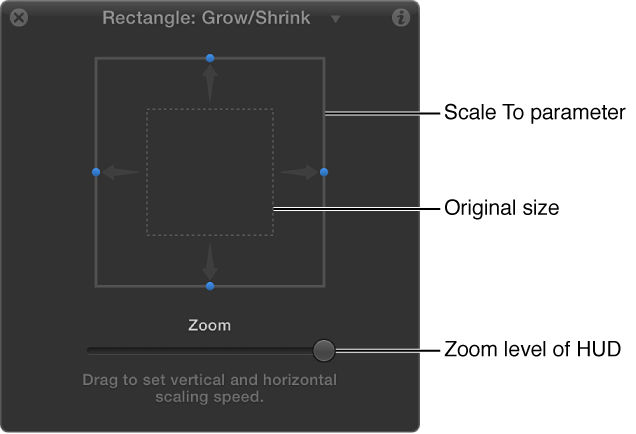

The Grow/Shrink behavior lets you animate the scale of an object, enlarging or reducing its size over time. At the first frame of the behavior, the object appears at its original size; the settings of the behavior determine whether the object grows or shrinks over the duration of the effect. The vertical and horizontal growth rates can be set to independent values, for asymmetrical effects.
Note: The Grow/Shrink behavior cannot be applied to cameras or lights.
You can use the Grow/Shrink behavior with high-resolution graphics to zoom into an image, such as a map or photograph. You can combine this behavior with the Throw or Wind behavior to pan across the image while zooming into it. The Grow/Shrink behavior can also be used to emphasize or de-emphasize images in your project. For example, you can enlarge an object to make it the center of attention, or shrink the object while introducing another object to move the viewer’s eye to the new element.
Adjust this behavior using the controls in the Behaviors Inspector:
Increment: A pop-up menu that sets how the behavior’s effect progresses over its duration in the Timeline. There are three options:
Continuous Rate: Uses the Scale Rate parameter to grow or shrink the object by a steady number of pixels per second.
Ramp to Final Value: Grows or shrinks the object from its original size to the specified percentage plus the original scale in the Scale To parameter. If the behavior is shortened in the Timeline, the Grow/Shrink effect occurs faster.
Natural Scale: Uses an exponential curve so that the animation progresses slowly when the scale values are small, and speeds up when the values are large, creating the illusion of scaling at a constant speed. This is the default option.
Scale Rate/Scale To: A slider that sets the speed and magnitude of the effect (depending on the command chosen in the Increment pop-up menu). Click the disclosure triangle to reveal X and Y sliders that adjust horizontal or vertical scale independently.
Curvature: A slider that adjusts the acceleration from the original to the final size. Higher Curvature values ease into and out of the effect. Because Curvature is defined by the length of the behavior in the Timeline, minus the End Offset, this setting does not affect the overall duration of the effect.
Note: The Curvature parameter is not available when the Increment parameter is set to Natural Scale.
End Offset: A slider that offsets the end of the behavior’s effect relative to the last frame of its position in the Timeline, in frames. Adjust this parameter to make the behavior stop before the end of the behavior bar in the Timeline.
The HUD consists of two rectangular regions. The first, a rectangle with a dotted line, represents the original size of the object. The second, a solid rectangle, represents the relative growth rate. Drag a border of the sold rectangle to grow or shrink the object. Drag the slider to adjust the scale of the HUD controls, increasing or decreasing their effect.