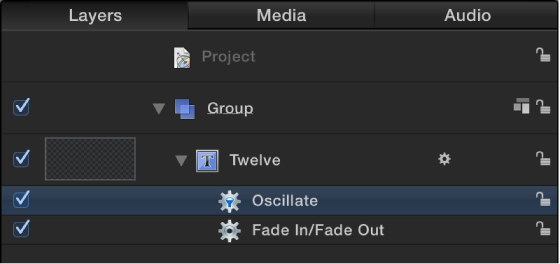

Like other behaviors, Parameter behaviors appear nested underneath the objects they’re applied to in the Layers list and Timeline, along with any other behaviors applied to that object.
Note: Although Parameter behaviors appear nested under objects in the Layers list, each Parameter behavior is applied to a single parameter of an object, and not to the object itself.
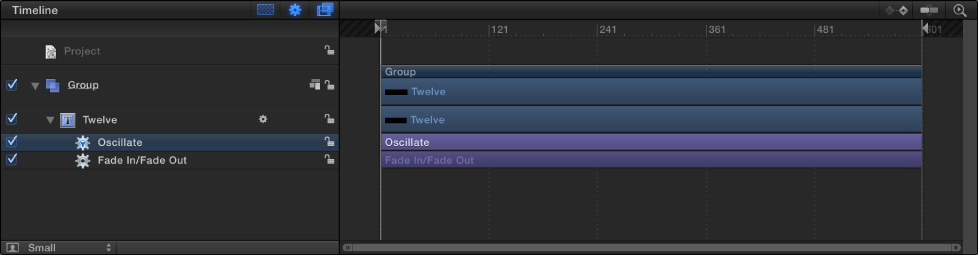
Whereas standard behaviors display a simple gear icon in the Layers list, Parameter behavior icons contain a funnel-shaped image at the center of the gear. The funnel represents the “channeling” of individual parameters.
The same icon appears in the Timeline.
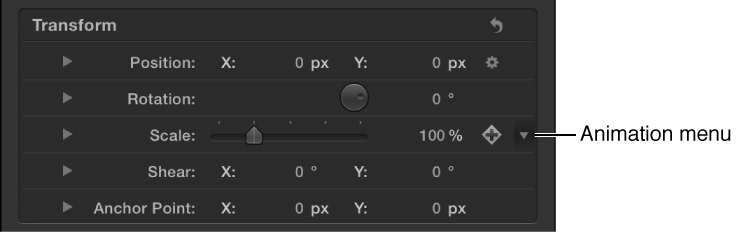
Control-clicking a parameter’s name in the Inspector, or clicking the downward arrow at the right of a parameter (visible when you move the pointer over it) opens the Animation menu, which displays the names of behaviors applied to that parameter.
Choosing a behavior opens the Behaviors Inspector.
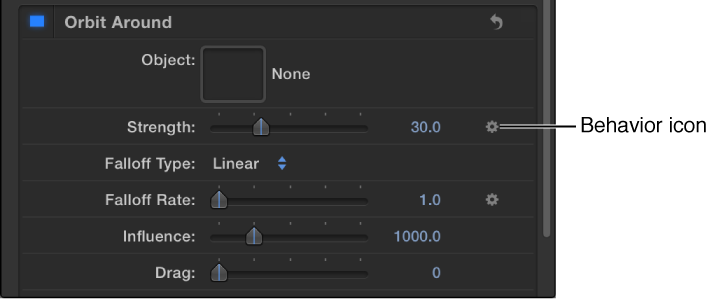
As with all other behaviors, when a Parameter behavior is applied to an object in your project, a behavior icon (a gear) appears over the Keyframe button of the affected parameter in the Properties, Behaviors, or Filters Inspector where it is applied.