Change a gradient’s color and opacity

The gradient editor is a flexible and powerful tool, allowing you to create custom styles.

Change the colors in a gradient

  1. Click the Gradient disclosure triangle to show the gradient editor.

  2. To change the color of a color tag in the gradient editor, do one of the following:

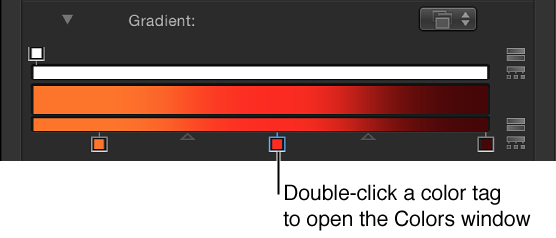
    • Double-click a color tag.

      Color tag in gradient editor

      The Colors window appears. Use the Colors window to set a color for the tag.

    • Click a color tag, click the disclosure triangle to the left of Color parameter name, then adjust the Red, Green, and Blue color channel sliders.
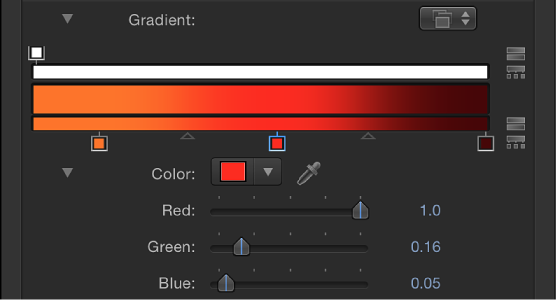
      Gradient editor showing color controls when a tag is selected
    • Control-click a color tag to display the pop-up color palette. Drag the eyedropper in the palette to select a color. Drag in the lower palette to set the tag to a grayscale color.

    • Click a color tag, then Control-click the color well to display the pop-up color palette.

    • Click a color tag, click the eyedropper tool, then click a color in the Canvas.
Change the opacity in a gradient

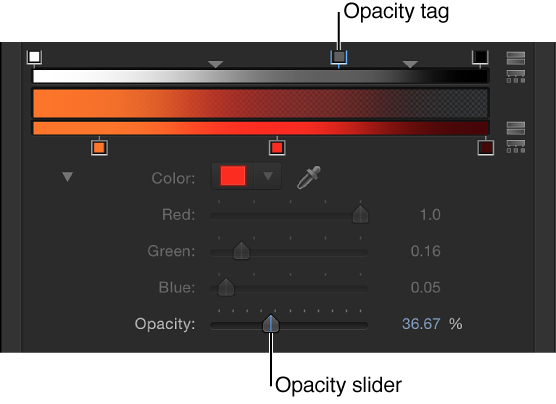
  1. Click an opacity tag.

    The Opacity slider is enabled.

    Gradient editor showing opacity tag and Opacity controls
  2. Use the Opacity slider or adjacent value slider to change the level of transparency.

    The gradient transparency reflects the new opacity values.

    Tip: The lower the percentage of the opacity, the greater the transparency.

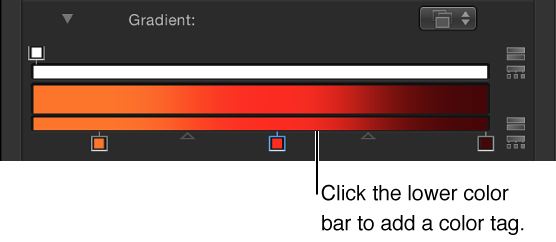
Add or remove a color tag

Add an opacity tag to a gradient

Remove a color or opacity tag from the gradient