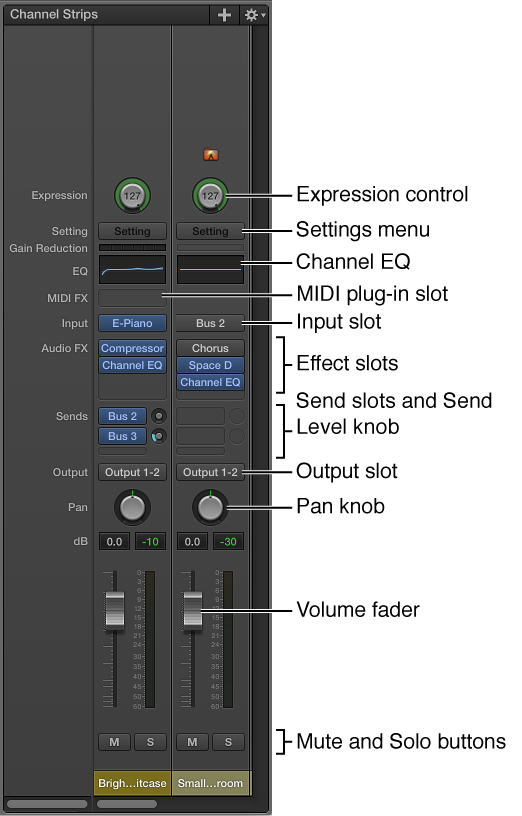

Channel strips are the building blocks of your patches. They contain the instruments and effects for the sounds you use in performance. MainStage channel strips use the channel strip interface common to many DAW and mixing applications. The main features of MainStage channel strips are shown below:
Icon: Shows the type of channel strip for easy identification.
Expression control: Allows you to quickly adjust the expression value of the channel strip.
Settings menu: Allows you to load and save the entire routing configuration of a single channel strip, including all loaded plug-ins and settings.
Channel EQ: Allows you to add an EQ effect to sculpt the sound of the channel strip signal before applying other effects.
MIDI plug-in slots: Allow you to insert MIDI plug-ins into instrument channel strips.
Effect slots: Allow you to insert plug-ins into audio, instrument, aux, and output channel strips.
Send slots: Allow you to route a channel strip’s signal to an aux channel strip. Sends are commonly used to apply the same effect or effects to several signals.
Send level knob: Controls the amount of signal sent to an aux channel strip. This knob appears when a Send slot is activated.
Effect slot: Sets the channel strip’s input source. Depending on the channel strip type, it can be a physical input, a bus, or a software instrument plug-in—in this case it is known as an Instrument slot.
Output slot: Sets the channel strip’s output path. It can be a physical output or a bus.
Pan/Balance knob: On a mono channel strip, the Pan/Balance knob controls the position of the signal in the stereo image. On a stereo channel strip, it controls the relative level of the left and right signals at their outputs.
Volume fader: Sets a channel strip’s playback volume.
Mute button: Mutes and unmutes the channel strip.
Solo button: Solos and unsolos the channel strip.
Level meter: Displays a channel strip’s playback level.
Peak level display: Updates during playback to show the highest peak level reached.
In MainStage, you can use audio, software instrument, and auxiliary (aux) channel strips in your patches and sets, and also at the concert level. You can also use external instrument patches to “play” external hardware devices and ReWire applications. You can adjust the volume level using the Volume fader, adjust the pan position using the Pan knob, and mute or solo the channel strip using the Mute and Solo buttons.
A MainStage concert can have a maximum of 1023 software instrument channel strips, 512 audio channel strips, 256 external instrument channel strips, and 256 auxiliary (aux) channel strips.
You can add effects using the Insert slots, send the signal to an auxiliary channel (aux) using the Sends slots, and choose a different output from the Output slot. For audio channel strips, you can change the format between mono and stereo using the Format button. For software instrument channel strips, you can change the instrument using the Instrument slot. You can also choose, copy, and save channel strip settings, choose a different channel strip type, or reset the channel strip from the Settings menu.
To learn how to add a channel strip, see Add a channel strip. To learn how to change a channel strip setting, see Change a channel strip setting. For information about the included instrument and effects plug-ins, see the MainStage Instruments and MainStage Effects manuals.