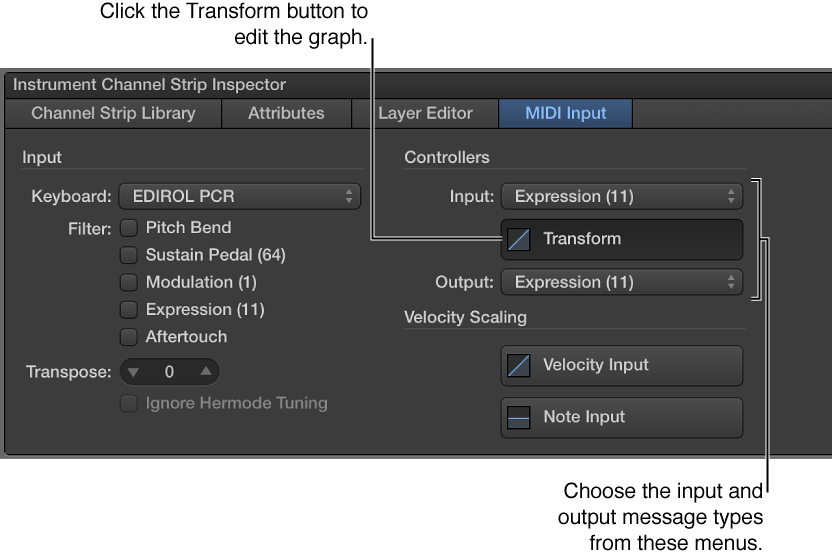
Using a transform graph, you can remap the values for some MIDI control messages so that input values from your controller produce different output values for the channel strip. A common use of the transform is for expression scaling, where input MIDI expression values are mapped to different output values on a graphic curve.
In addition, you can transform input values for one message type to output values for another message type. For example, you can transform MIDI volume values from your controller to send expression values to the channel strip or transform input breath values to send modulation values. The transform graph provides a very flexible way of remapping both the values and the output destination for these MIDI control messages. In MainStage, you can transform values for expression, modulation, MIDI volume, and breath control messages.
You choose the input and output message types and graphically create transform curves in the MIDI Input tab of the Channel Strip Inspector. In a transform graph, the horizontal axis represents input values from your controller, and the vertical axis represents output values sent to the channel strip.
Set the input and output message types for a controller transform
In the Channel Strips area, select the channel strip for which you want to create a controller transform.
In the Channel Strip Inspector, select the MIDI Input tab.
In the Controllers section, choose the input message type from the Input pop-up menu.
Choose the output message type from the Output pop-up menu.
Open the Transform graph
In the MIDI Input tab of the Channel Strip Inspector, click the Transform button.
If a patch contains more than one channel strip with a transform graph, the transform curves for the other channel strips in the patch appear in the controller Transform graph window behind the current curve. Each channel strip in the patch can have its own controller transform.