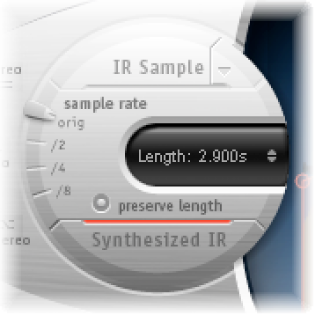

Space Designer can use either recorded impulse response files or synthesized impulse responses. The circular area to the left of the main display contains the impulse response parameters. These are used to determine the impulse response mode (IR Sample mode or Synthesized IR mode), to load or create impulse responses, and to set the sample rate and length.
Impulse response parameters
IR Sample button: Switch to IR Sample mode. In IR Sample mode, an impulse response sample is used to generate reverberation.
IR Sample pop-up menu: Click the down arrow to open the IR Sample pop-up menu, then choose an IR sample from the file browser.
Synthesized IR button: Turn on Synthesized IR mode. A new synthesized impulse response is generated, which is derived from the values of the Length, envelope, Filter, EQ, and Spread parameters.
Sample rate slider: Determine the sample rate of the loaded impulse response.
Preserve length button: Preserve the original length of the impulse response when changing the sample rate with the sample rate slider.
Length field: Adjust the length of the impulse response.
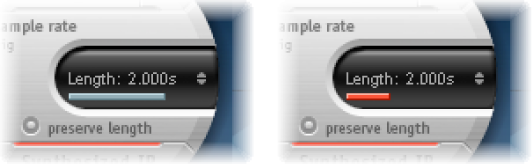
Important: To convolve audio in real time, Space Designer must first calculate any parameter adjustments to the impulse response. This requires a moment or two following parameter edits and is indicated by a blue progress bar. During this parameter edit processing time you can continue to adjust the parameter. When calculation starts, the blue bar is replaced by a red bar, indicating that a calculation is occurring.
In IR Sample mode, Space Designer loads and uses an impulse response recording of an acoustic environment. This is convolved with the incoming audio signal to place it in the acoustic space provided by the impulse response.
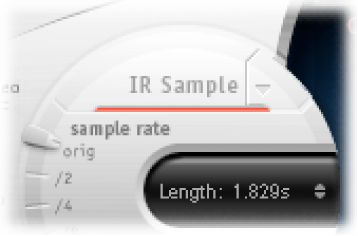
Click the IR Sample button in the circular area to the left of the main display.
Select an impulse response file from any folder.
Note: If you have already loaded an impulse response file, clicking the IR Sample button switches the mode from Synthesized IR to IR Sample mode.
Click the down arrow next to the IR Sample button to open a pop-up menu containing the following commands:
Load IR: Loads an impulse response sample without changing the envelopes.
Load IR & Init: Loads an impulse response sample and initializes the envelopes.
Show in Finder: Opens a Finder window that shows the location of the currently loaded impulse response file.
All impulse responses that ship with Logic Pro are installed in the /Library/Audio/Impulse Responses/Apple folder. Deconvolution files have an .sdir file extension.
Any mono, stereo, AIFF, SDII, or WAV file can be used as an impulse response. In addition, surround formats up to 7.1, discreet audio files, and B-format audio files that consist of a single surround impulse response can also be used.
In Synthesized IR mode, Space Designer generates a synthesized impulse response based on the values of the Length, envelope, Filter, EQ, and Spread parameters.
Note: You can switch between a loaded impulse response sample and a synthesized impulse response without losing the settings of the other.
Click the Synthesized IR button in the Impulse Response Parameters section.
Repeated clicks of the active Synthesized IR button randomly generates new impulse responses with slightly different reflection patterns. The current impulse response state (including parameter and other values that represent the reflection patterns and characteristics of the synthetic impulse response) is saved with the setting file.
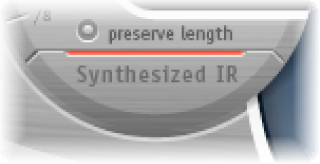
Note: Clicking the Synthesized IR button while you are in IR Sample mode switches you back to the synthesized impulse response stored with the setting.
Changing the sample rate upward increases—or changing it downward decreases—the frequency response (and length) of the impulse response, and to a degree the overall sound quality of the reverb. Upward sample rate changes are of benefit only if the original impulse response sample actually contains higher frequencies. When reducing the sample rate, use your ears to decide if the sonic quality meets your needs.
Note: Natural room surfaces—except concrete and tiles—tend to have minimal reflections in the higher frequency ranges, making the half-rate and full-rate impulse responses sound almost identical.
To determine the sample rate of an impulse response: Move the sample rate slider.
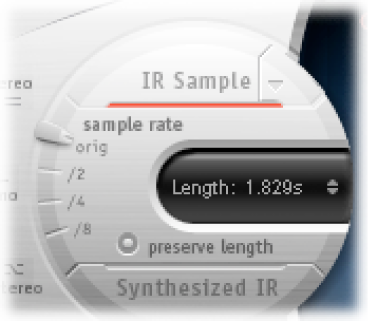
Orig: Space Designer uses the current project sample rate. When loading an impulse response, Space Designer automatically converts the sample rate of the impulse response to match the current project sample rate, if necessary. For example, this allows you to load a 44.1 kHz impulse response into a project running at 96 kHz, and vice versa.
/2, /4, /8: These settings are half-divisions of the preceding value—one-half, one-quarter, one-eighth. For example:
If the project sample rate is 96 kHz, the options are 48 kHz, 24 kHz, and 12 kHz.
If the project sample rate is 44.1 kHz, the options are 22.05 kHz, 11.025 kHz, and 5512.5 Hz.
When you select half the sample rate, the impulse response becomes twice as long. The highest frequency that can be reverberated is halved. This results in a behavior that is much like doubling every dimension of a virtual room—multiplying the volume of a room by eight. The lower sample rates can also be used for interesting tempo, pitch, and retro digital sounding effects. Another benefit of reducing the sample rate is that processing requirements drop significantly, making half–sample rate settings useful for large, open spaces.
To retain the original length of the impulse response when the sample rate is changed: Click the preserve length button. Manipulating this parameter in conjunction with the sample rate parameter can lead to interesting results.
If you are running Space Designer in a project that uses a higher sample rate than the impulse response, you may also want to reduce the impulse response sample rate. Make sure the preserve length button is turned on. This cuts CPU processing time without compromising reverb quality.
Tip: You can make similar adjustments while running in Synthesized IR mode. Most typical reverb sounds don’t have an excessive amount of high frequency content. If your project is running at 96 kHz, for example, you would need to use lowpass filtering to obtain the mellow frequency response characteristics of many reverb sounds. A better approach would be to first reduce the high frequencies by 1/2 or even 1/4 using the “sample rate” slider, followed by using the lowpass filter, thus conserving significant CPU resources.
Move the Length parameter to set the length of the impulse response—sampled or synthesized.
All envelopes are automatically calculated as a percentage of the overall length, which means that if this parameter is altered, your envelope curves stretch or shrink to fit.
Note: When you are using an impulse response file, the Length parameter value cannot exceed the length of the actual impulse response sample. Longer impulse responses (sampled or synthesized) place a higher strain on the CPU.