
Use the Space Designer Spread parameters
The Spread and Xover (crossover) knobs enhance the perceived width of the signal without losing the directional information of the input signal normally found in the higher frequency range. Low frequencies are spread to the sides, reducing the amount of low frequency content in the center—allowing the reverb to encompass the mix.
Note: The Spread and Xover knobs function only in Synthesized IR mode.
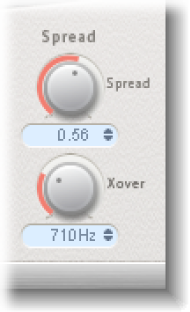
Set the level of the Spread knob and field: Rotate to extend the stereo base to frequencies that fall below the frequency determined by the Xover parameter.
At a Spread value of 0.00, no stereo information is added. (The inherent stereo information of the source signal and reverb, however, is retained.)
At a Spread value of 1.00, left and right channel divergence is at its maximum.
Set the level of the Xover knob and field: Rotate to set the crossover frequency in Hertz. Any synthesized impulse response frequency that falls below the value you set is affected by the Spread parameter (at values over 0).
Note: These parameters have no impact when you use Space Designer as a mono plug-in.