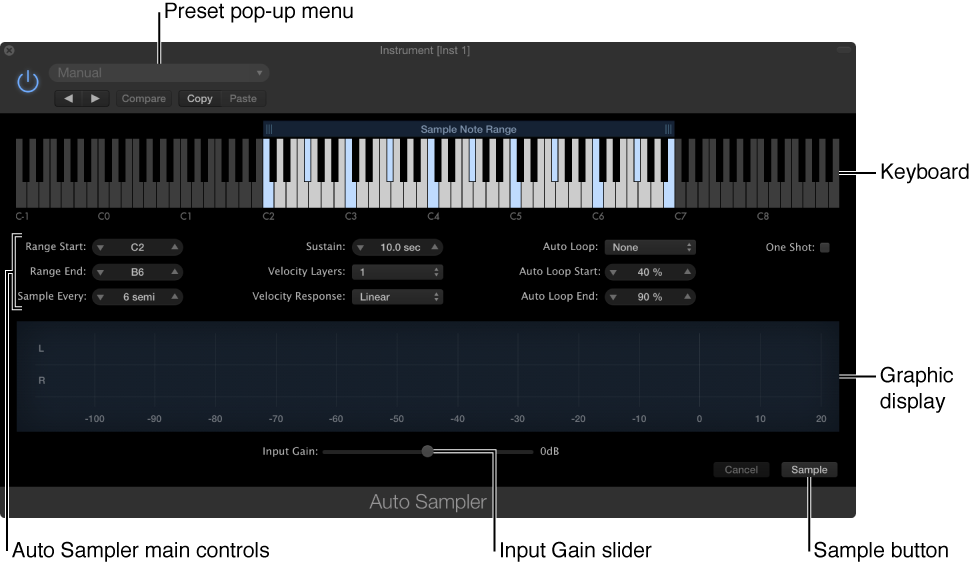

After inserting Auto Sampler in an Audio FX slot in a MainStage channel strip, you open the Auto Sampler window. The Auto Sampler window includes the following controls:
Preset pop-up menu: Includes presets for various Auto Sampler uses.
Keyboard: Shows the key range as well as the actual notes to be sampled (in blue). You can adjust the key range by dragging the edges of the Sample Note Range rectangle overlaid on the keyboard. The keyboard is also “live;” you can play notes by clicking keys.
Auto Sampler main controls: Let you set the key range, which notes are sampled, the sustain length, the number of velocity layers sampled, whether samples are auto-looped, and other settings. For detailed information on each control, see Auto Sampler controls and parameters.
Graphic display: Serves two functions. When you play notes, shows the level and indicates whether played notes are clipping. During the sampling process, shows the waveform of the sound currently being sampled.
Input Gain slider: Adjust the input gain so notes are sampled at a sufficiently high level, without clipping.
Note: The Input Gain slider controls only the input recording level to Auto Sampler, not the channel strip volume.
Sample button: Click Sample to start the process of creating an EXS instrument.