
There are two views in the Instrument Editor window: Zones and Groups.
In Zones view, the area above the keyboard displays the Zones area. The general menus, buttons, and so on, are displayed in both Zones and Groups views.
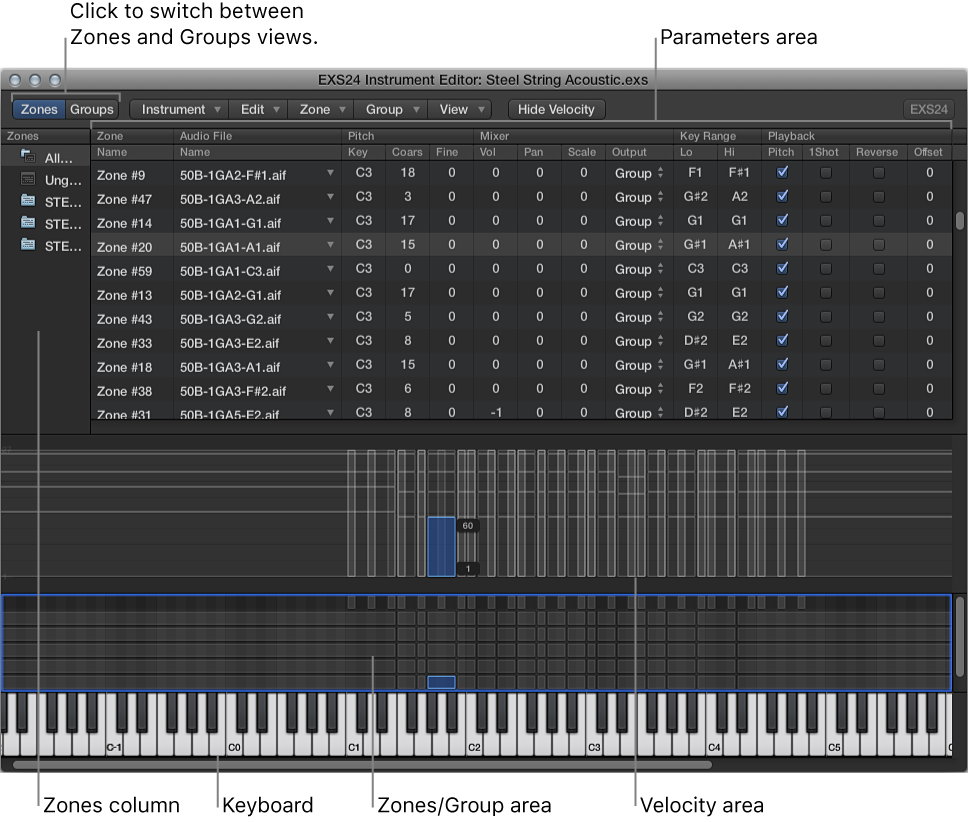
Zones column: Displays all zones of the instrument. By default, every instrument contains All Zones (which includes “grouped” zones) and Ungrouped. Click either All Zones or Ungrouped to display the associated zones in the Parameters area.
Parameters area: Displays the parameters of the zone (individual, all, or ungrouped) chosen in the Zones column.
Velocity area: Shows the velocity range of the selected zone.
Note: The Velocity area is turned off, by default.
Zones/Groups area: Visually indicates the zones or groups above the keyboard.
Keyboard: Click notes to trigger the associated zone. The keyboard also serves as a visual reference for the placement of zones or groups (in the Zones/Groups area).
In Groups view, the area above the keyboard displays Groups. The general menus, buttons, and so on, are displayed in both Zones and Groups views.
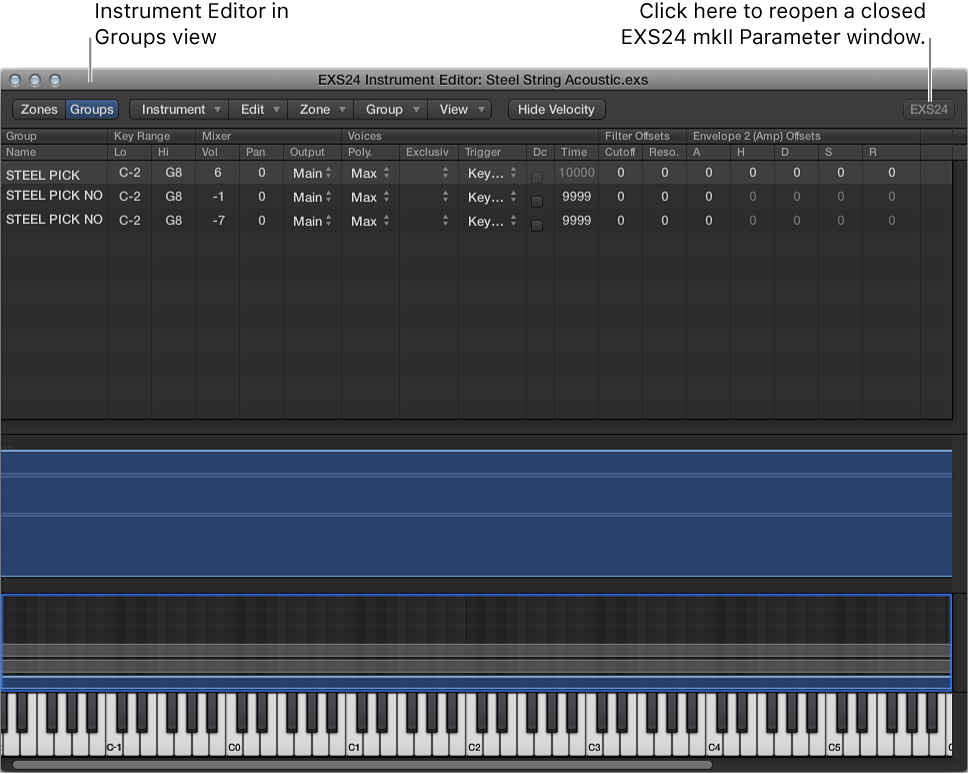
Note: Clicking the EXS24 button does not display the Parameter window in the foreground if it is covered by other floating windows.
Click the Groups button in the upper-left corner to switch to Groups view, or click the Zones button in the upper-left corner to switch to Zones view. You can also use the Toggle Zones/Groups View key command to switch between views.