
Alchemy provides thousands of ready-made presets for you to explore. These are not only a great resource for musical inspiration but can also provide numerous insights into how sound designers have created them. Even if you’re not inclined to program your own sounds from scratch, some small tweaks to existing presets can provide that “perfect” sound for your projects or performances.
Note: Images shown in tutorials are not specific to presets used in tasks. They are included as a guide to help you find areas and parameters in the Alchemy interface.
Click the Preset name field in the Name bar, and choose the 12 Strings preset. Make sure the Advanced view button is active.
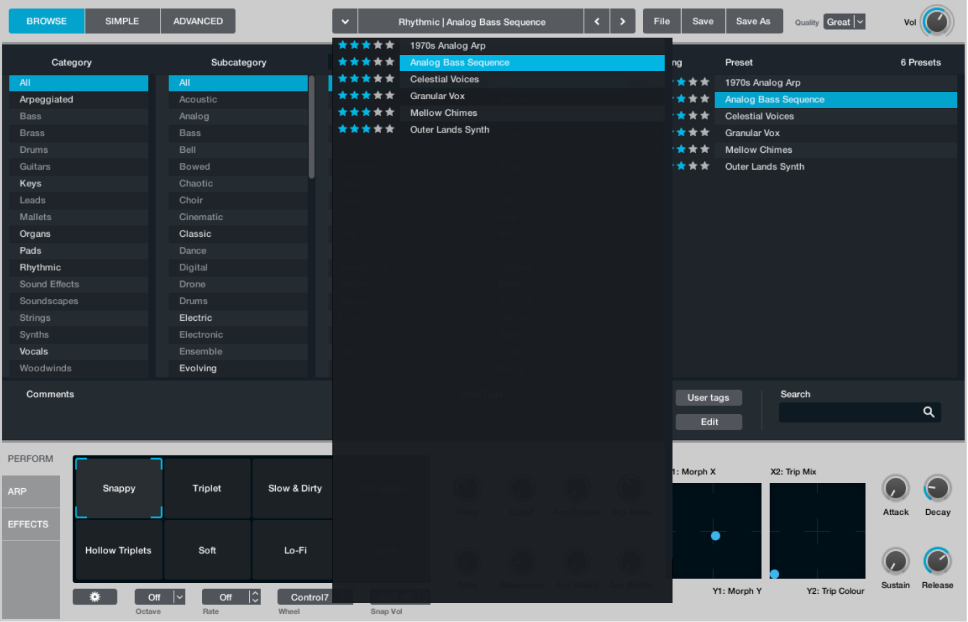
Click the Perform button to view the performance controls, then drag the framing bracket in the Transform pad while playing your keyboard.
The sound morphs between different sound variations. If you happen across something you like, you can use the Save As button in the Name bar to name and save a new preset.
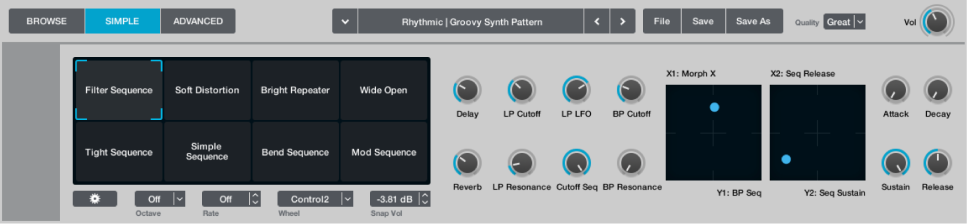
Drag the framing bracket to the top left (Pluck + Pad in the preset), then set the Pad Cutoff and Pad Attack knobs to zero. Drag the Cutoff Env knob to the 100% position, and also set the Release knob to around 20%.
When you play the keyboard staccato you will hear a less sustained sound with a different harmonic makeup, and the delay effect is more easily heard. Play across a large range of the keyboard, and adjust the Cutoff Env knob to hear how this affects the filter response.
Click the Effects button to view the effects section, then choose the Slapback preset from the Delay plug-in File menu.
Play a few notes to hear the impact this has, then choose the Bandpass Ping Pong preset.

Return to the performance controls, and adjust the Resonance knob while playing both staccato and held notes.
Double-click both the Resonance and Cutoff Env knobs to reset them to the center position.
Click the Global button toward the upper left to view sources A to D.
You can see that the 12 Strings preset uses three sources: A, B, and C.
Click the source select field for source A, then choose Load VA > Complex > Eighties Notch.
Play your keyboard to hear a more classic synth type sound. Feel free to repeat this step with sources B and C, using different waveforms, or perhaps import a drum loop.
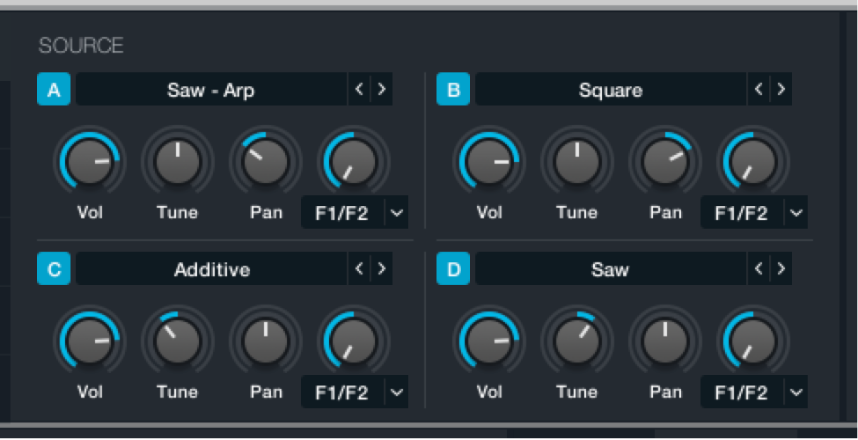
Click the File button in the Name bar and choose Initialize Preset, then choose the 12 Strings preset from the Preset name field. Make sure the Global button is active in advanced view.
Click the source A button to mute this source. A lit A, B, C, or D button indicates the source is active.
Play the keyboard to hear a pad sound. The “pluck” sound has been silenced.
Tip: Muting sources in this way is also a good working practice when editing or adjusting source settings because it allows you to focus on the sonic characteristics you are trying to achieve for the source. You can unmute the source and adjust the Volume settings of each to set the balance between them once you’ve made your changes.
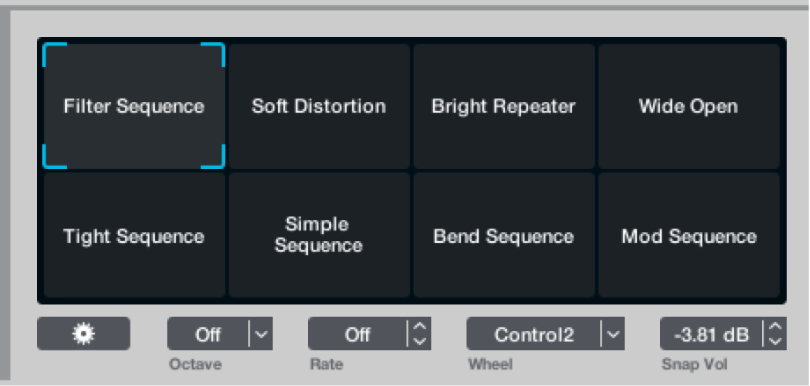
Click the Perform button to view the performance controls, then drag the framing bracket in the Transform pad while playing your keyboard.
You will hear the sound morphing between different sound variations. If you happen across something you like, you can use the Save As button in the Name bar to name and save a new preset. Return the framing bracket to the Pluck + Pad position when done.
Drag the source B Tune knob to -24 semis.
Click the source B Vol knob.
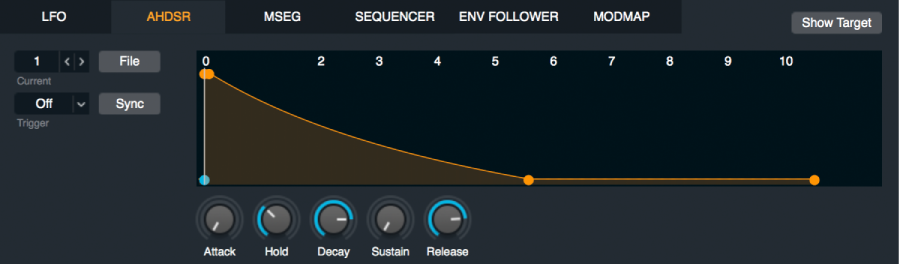
The AHDSR envelope updates in the central modulation section.
Double-click the source B Pan knob to center it.
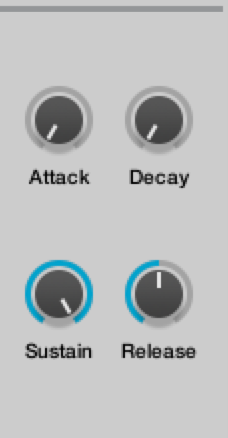
In the central modulation section, set the Attack, Hold, and Decay knobs to zero, set Sustain to around 75%, and Release to around 0.065. You may also want to adjust the Attack knob in the performance controls section if the attack phase of the sound is too slow or too quiet.
Play the keyboard to hear a simple synth bass sound.
Change the filter 2 Cutoff and Resonance settings in the main filter section to the right of the sources while playing.
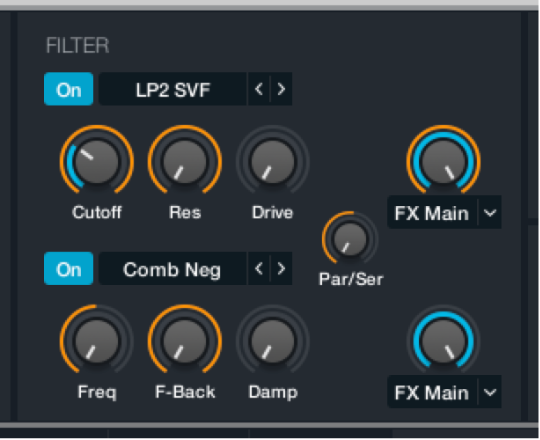
Click the Filter type menu to experiment with different filters.
Enable filter 1, and try different settings.
Adjust the Par/Ser knob to hear how this affects the sound when the filters are used in series or in parallel.
Drag the framing bracket in the performance controls to hear variations of your tweaked sound.
This is less of a tweak and more of a shortcut for sound creation. Alchemy provides thousands of presets that can be partially used for new sounds, sequences, modulation settings, arpeggios, effects settings, and more.
In any loaded preset, click the source name field and choose Save Source from the pop-up menu.
Give the source a name in the file dialog, and click Save.
This source is automatically saved in the Alchemy > Source subfolder.
In a new instance of Alchemy, click the source name field and choose Load Source from the pop-up menu, then choose the saved source.
The source (or sources) from up to four presets can be recycled in this way.
Steps 1-3 can be repeated for any Alchemy element that provides a File pop-up menu, such as modulation settings, arpeggiator settings, effects settings, and so on.
Make use of existing presets as sources of raw material for your own sounds.