
You can play your chosen software instrument using musical typing or the onscreen keyboard. You can also use a music keyboard.
If your computer has a Touch Bar, you can play the software instrument on the selected software instrument track using the Keyboard screen and play drum kits and percussion instruments on the selected Drummer track using the Drum Pads screen.
Choose Window > Show Musical Typing.
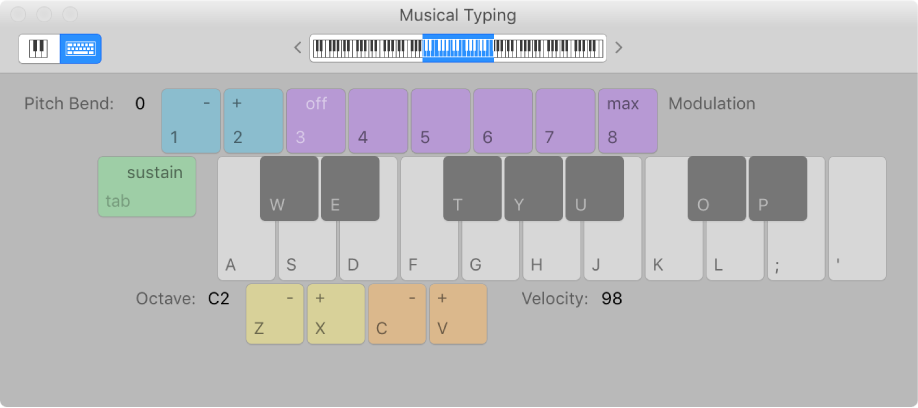
The Musical Typing window appears, showing the layout of keys used for playing notes and changing controller information.
Select the software instrument track you want to play.
Play the software instrument using the keys on your computer keyboard. Use the other keys shown in the window to perform the following actions:
Press Z or X to move down or up by octaves.
Press C or V to lower or raise the velocity.
Press 4 through 8 to change the modulation (mod wheel) value, or 3 to turn off modulation.
Press 1 or 2 to bend the pitch down or up. The pitch is bent for as long as you press the key.
Press Tab to turn sustain on or off (similar to using a sustain pedal).
As you play, the notes you play are highlighted in the Musical Typing window.
Choose Window > Show Musical Typing.
The Musical Typing window appears. In the upper-left area of the window, there are two buttons for switching between the Musical Typing window and the onscreen keyboard.
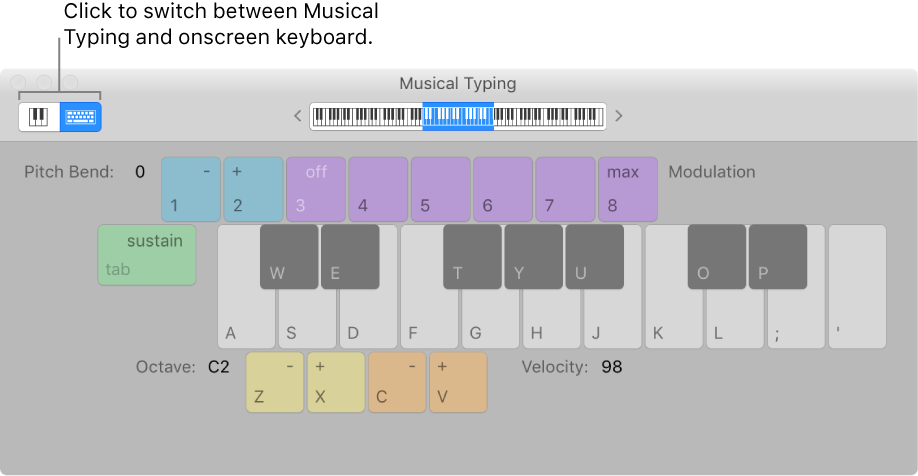
Click the Keyboard button in the upper-left area of the window.
The onscreen keyboard appears.
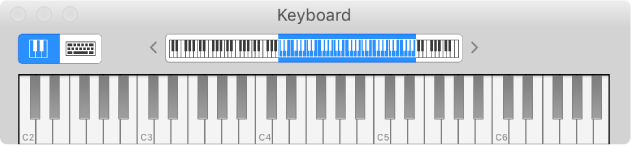
To play the onscreen keyboard, click the notes on the keyboard.
You can click when the project is playing or stopped, and record by clicking during recording. Clicking notes lower on the keys plays the notes with higher velocity, and clicking higher plays them with lower velocity.
To change the range of the onscreen keyboard, do one of the following:
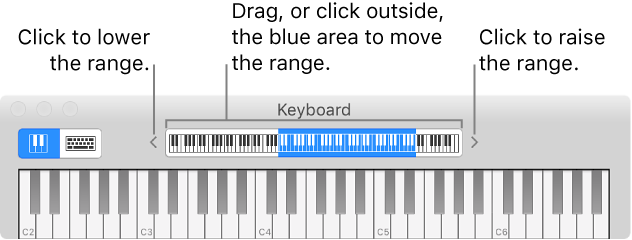
Drag the blue rectangle in the overview over the range you want to play.
Click an area of the overview outside the blue rectangle to move it to where you clicked.
Click one of the small triangles to the left and right of the keys. Clicking the left triangle lowers the range by an octave, and clicking the right triangle raises the range by an octave.
Tap the Mode button on the left side of the Touch Bar, then tap the Keyboard button
Tap the keys on the Touch Bar keyboard to play notes.
To adjust the size of the Touch Bar keyboard, tap one of the Keyboard Size buttons to the left of the Touch Bar keyboard.
To limit notes to a musical scale: Tap the Scale button, then tap to select the root note and the mode.