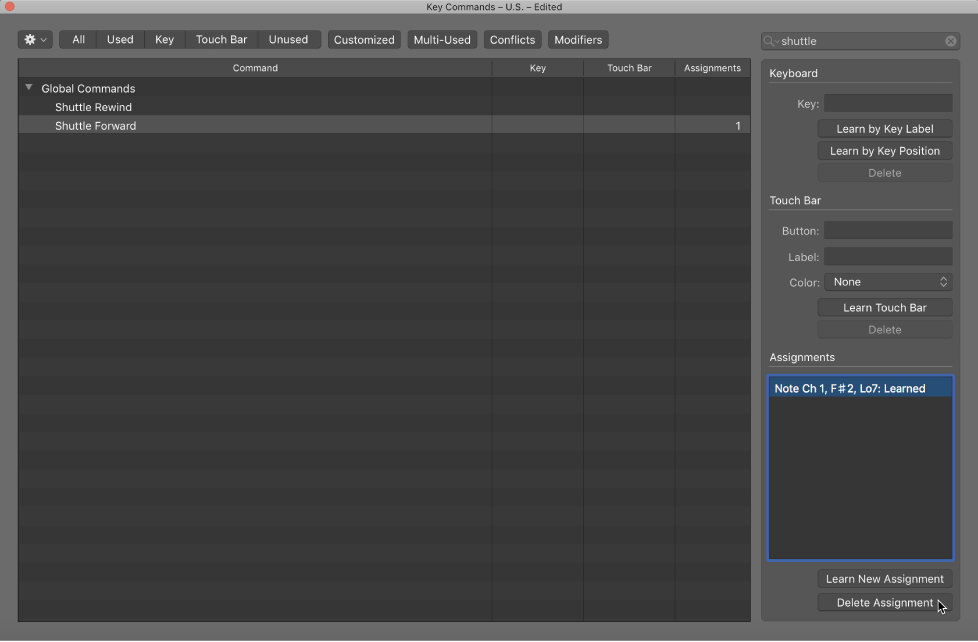
You can assign particular computer keyboard keys to Logic Pro functions and control surface messages to particular commands—effectively teaching Logic Pro to understand these messages.
If your computer has a Touch Bar, you can assign keyboard shortcuts to appear in the Touch Bar as one of the Keyboard Shortcuts screen shortcuts. See Touch Bar shortcuts for more information.
Select a command in the Command column.
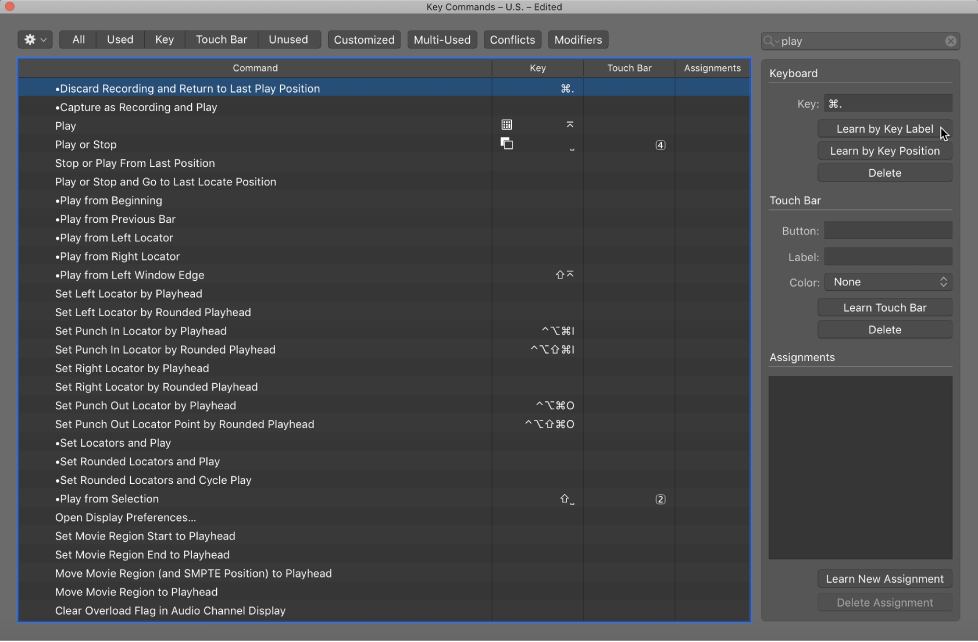
Click the Learn by Key Label button.
Press the relevant keyboard key, along with the modifier key or keys—Shift, Control, Option, Command.
If the keyboard shortcut assignment is already used by Logic Pro, an alert appears. You have the following options:
Cancel: Click Cancel if you don’t want to change the existing assignment.
Replace: Click Replace if you want to replace the existing assignment with the selected function.
OK: Click OK if you want to assign the keyboard shortcut combination to the selected function, while retaining the existing keyboard shortcut or function.
If the keyboard shortcut assignment is already used by macOS, typing the keyboard shortcut triggers the system function, indicating the keyboard shortcut is not available. For example, if you press Option-Command-D, the Dock in the Finder is shown or hidden, indicating the keyboard shortcut is not available. In this case, choose another keyboard assignment.
Click the Learn by Key Label button again.
The Learn by Key Position button works in a similar way, differing in that you can assign, for example, different commands to the alphanumeric keyboard and the numeric keyboard.
Select a command in the Command column.
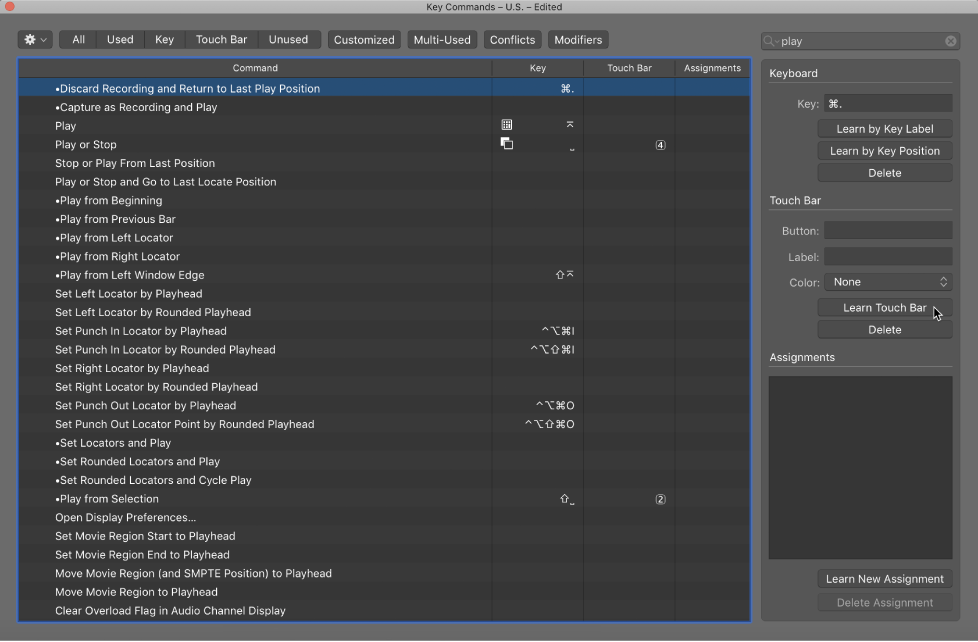
Click the Learn Touch Bar button.
Tap the relevant Touch Bar button, along with the modifier key or keys—Shift, Control, Option, Command.
If the Touch Bar button is already assigned, an alert appears. You have the following options:
Cancel: Click Cancel if you don’t want to change the existing assignment.
Replace: Click Replace if you want to replace the existing assignment with the selected function.
In the Label column, type a short name for the command. The name should be eight characters or less, so it fits on the Touch Bar button.
In the Color pop-up menu, choose a color for the Touch Bar button.
The button you assigned to the Touch Bar can be accessed from the Keyboard Shortcuts screen. For more information about using the Touch Bar, see Touch Bar shortcuts.
Click the Learn New Assignment button.
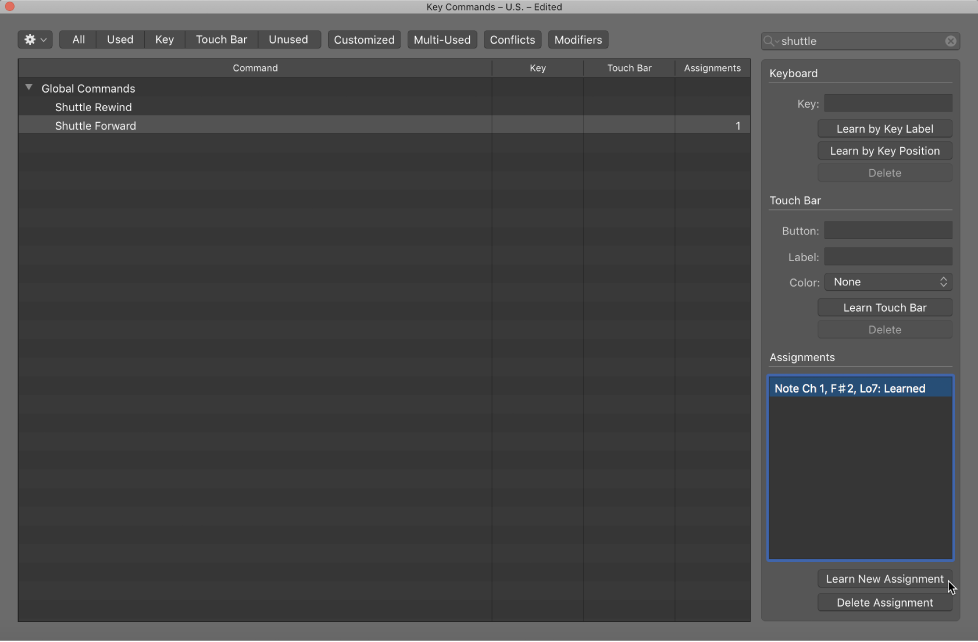
Select the command in the Command column.
Send a MIDI message from your controller.
The Assignments field displays the learned assignment, showing one or all of the following:
The name of the control surface—or the MIDI string, if the assignment is from an unsupported control surface
The name of the control
The zone and mode that the assignment belongs to
The Learn New Assignment button becomes unavailable when the entire message has been received. This avoids reception of further messages that may be sent by the device when you release the button.
Do one of the following:
To delete a keyboard shortcut assignment: Select the related command in the Command column, then click the Delete button.
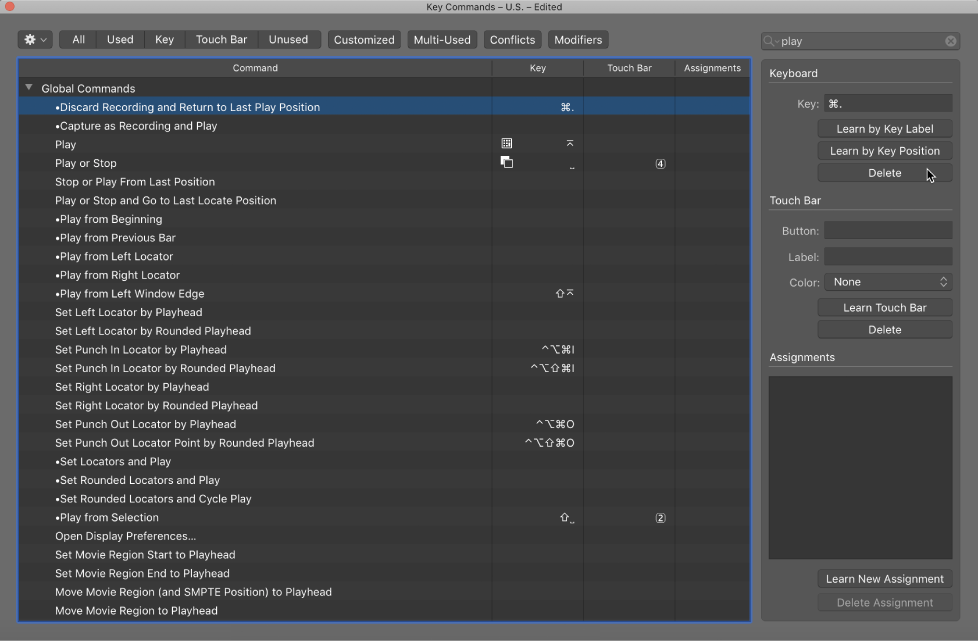
To delete a controller assignment: Select the related command in the Command column, then click the Delete Assignment button.