
Imagine a drum kit with a number of different samples used in several zones, mapped across the keyboard. You might decide that you want to change the parameters of each sample independently—to alter the decay of the snare, or to use a different cutoff setting for all hi-hat samples, for example.
In this context, the EXS24 mkII groups feature is useful. Groups allow for flexible sample organization. You can define as many groups as you need and assign each zone to one of these groups. In a drum kit, for example, you could assign all kick drums to Group 1, all snares to Group 2, all hi-hats to Group 3, and so on.
A group makes it possible to define a velocity range for all assigned zones, allowing you to specify a velocity window in which the grouped zones are triggered, for example. Each group also features offset parameters for the amplitude envelope and filter settings made in the Parameter window.
You can also play all zones without defining and assigning any groups—in this case, changes to parameter settings affect all samples (in all zones) equally.
Choose Group > New Group in the Instrument Editor.
A new group appears in the Zones column at the left side of the Instrument Editor.
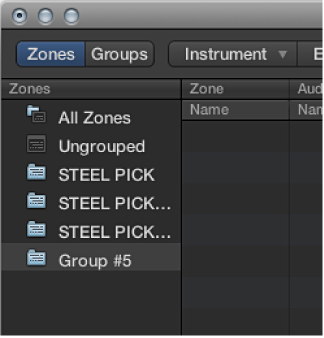
Do one of the following:
Choose the group from the Group pop-up menu.
Select a zone in the Instrument Editor, Finder, or Project Browser—then drag it into a group displayed in the Zones column.
Drag an ungrouped zone (or multiple selected zones) into the empty area below the Ungrouped Zones icon. This creates a new group, containing the dragged zone, or zones.
Drag a zone (or multiple selected zones) from one group to any of the following:
Another group, if you want to change the previous group assignment to the new group.
The Ungrouped Zones icon, if you want to change the previous group assignment to unassigned—ungrouped.
The empty area below the Ungrouped Zones icon, if you want to create a new group containing the dragged zone, or zones.
Tip: If you press Option while dragging zones to another group, you copy—rather than move—the selected zones.
Choose Group > Delete Unused Groups in the Instrument Editor.