
When the Project Type in File > Project Settings > General is set to “Use musical grid”, the length of imported audio regions is linked to the project tempo. If you add a tempo change at a particular ruler position, the length of regions changes, starting from that position. The playback speed of the imported regions doesn’t change, but all existing MIDI regions that were in sync with audio regions will now be out of sync. Audio regions that are lengthened (by increasing the tempo) may overlap subsequent regions on the same track, with the result that the overlapped parts of the regions are not heard. All audio region loop lengths (set with the Loop parameter in the inspector) change, resulting in irregular loops and rhythmic conflicts between tracks.
The following audio files can automatically match the project tempo and will follow any tempo changes made in the global Tempo track.
Audio recordings made in Logic Pro (7.0 and later)
Note: If you drag a file recorded in one project to another project using the Finder, the file does not follow the project tempo. However, files copied between two projects are able to follow the project tempo if the Flex & Follow region parameter is not set to Off.
Apple Loops
Audio regions on tracks for which Flex Time is turned on
Audio bounces made in Logic Pro (7.0 and later)
Note: Bounce files can only follow the project tempo if the Add resulting files to Project Audio Browser option is selected in the Bounce dialog when the file is bounced or exported. As with audio recordings, the bounce conforms to the project tempo if the Flex & Follow region parameter is not set to Off.
Audio files exported from Logic Pro (7.0 and later)
Note: Exported files can only follow the project tempo if the Add resulting files to Project Audio Browser option is selected in the Export dialog when the file is bounced or exported. As with audio recordings, the bounce conforms to the project tempo if the Flex & Follow region parameter is not set to Off.
Imported ReCycle files can also follow the project tempo. (See Add ReCycle files to your project.)
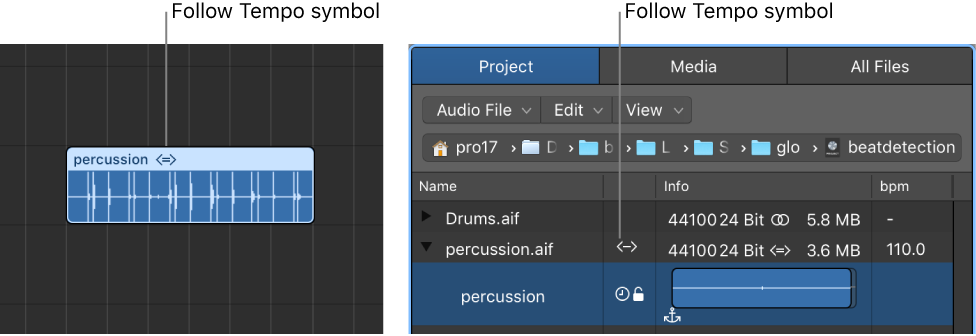
Audio files that follow the project tempo (and first key signature) are flagged with the Follow Tempo symbol, in both the Tracks area and the Project Audio Browser.
All other imported audio files require adjustment of either the region or the project tempo.
You can set an audio region to follow the project tempo, or add the region to the Apple Loop library as an Apple Loop. For information about creating Apple Loops, see Create your own Apple Loops
Select the audio region in the Tracks area, then choose On from the Flex & Follow pop-up menu in the Region inspector.