
You can record sound from a microphone (voice or acoustic instrument, for example), or from an electric instrument (such as an electric guitar) connected to your computer, on an audio track.
Select the header of the audio or guitar/bass track you want to record to.
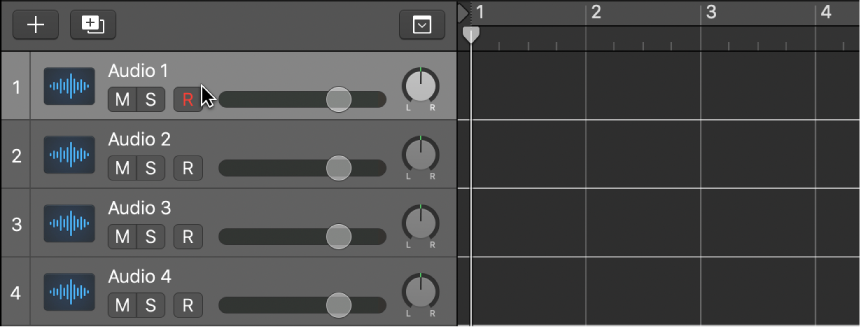
If the Record Enable button is present on the track header, the letter “R” will be red to indicate that the track is automatically enabled for recording.
Move the playhead to the point in the ruler where you want to start recording.
Set the metronome for recording if desired.
Click the Record button  in the control bar (or press R) to start recording.
Start singing or play your instrument.
The recording appears as a new audio region on the track as you record.
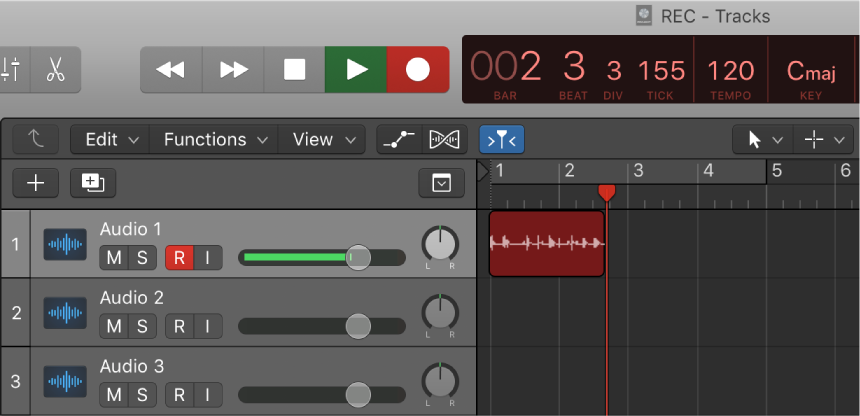
Click the Stop button  in the control bar (or press the Space bar) to stop recording.
 You can view the newly recorded audio region in the Project Audio Browser when Show Advanced Tools is selected in the Advanced preferences pane.