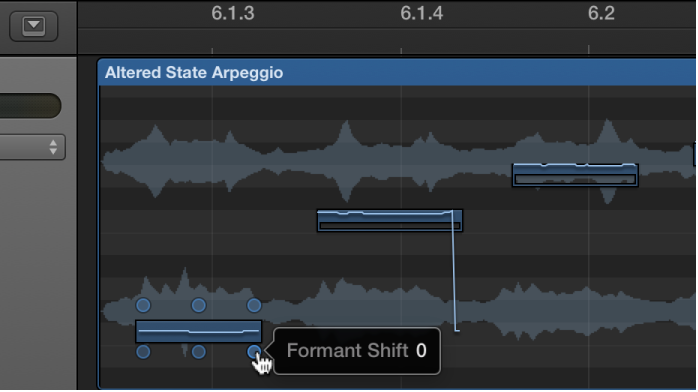

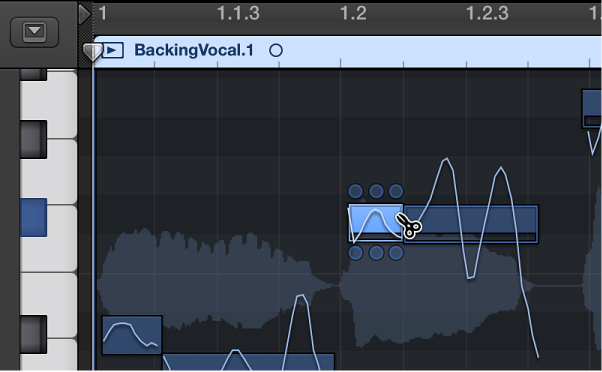
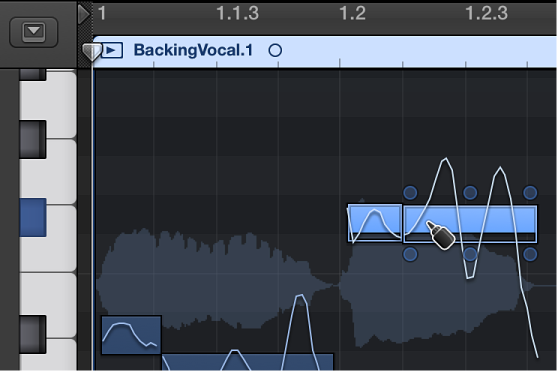
When you choose Flex Pitch for a track in the Audio Track Editor, or if you zoom into the track in the Tracks area, any sections of audio on that track that are identified as individual notes are displayed like notes in the Piano Roll Editor. When viewing Flex Pitch in this way, you can edit the pitch, time position, and length of notes in much the same way as you would in the Piano Roll Editor. You can also cut notes and merge multiple notes into one.
Each individual note contains “hotspots,” which you can use to edit pitch, vibrato, gain, and other parameters.
 For Flex Pitch to be available in the Tracks area, select Show Advanced Tools in the Advanced preferences pane.
Drag a note vertically.
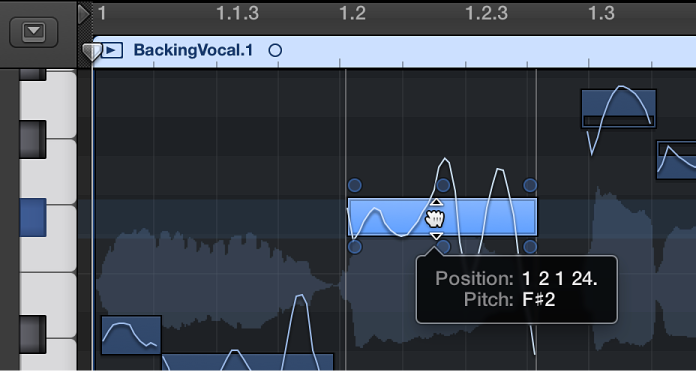
Drag a note horizontally.
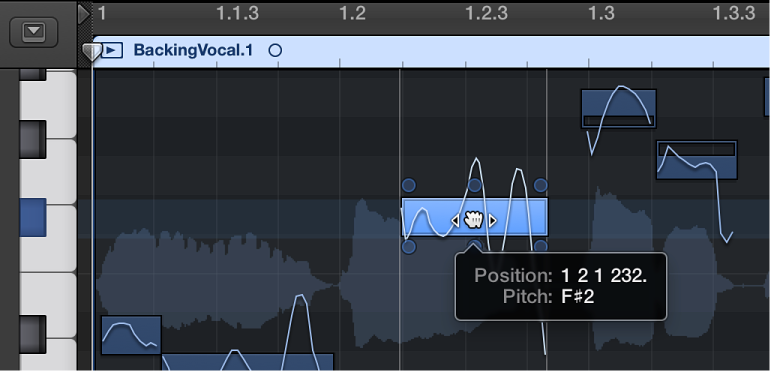
Drag the left or right edge of a note.
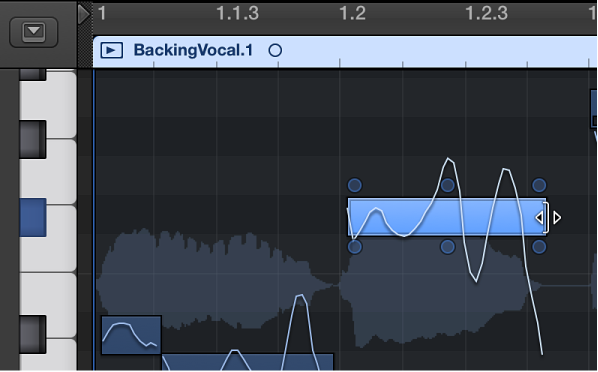
Click a note with the Scissors tool.
Select two or more notes, then click with the Glue tool.
Select a note, then do any of the following:
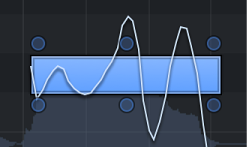
To edit the pitch drift at the start of the note: Drag the upper-left hotspot vertically.
To edit the vibrato: Drag the upper-mid hotspot vertically.
To edit the pitch drift at the end of the note: Drag the upper-right hotspot vertically.
To edit the gain: Drag the lower-left hotspot vertically.
To edit the fine pitch: Drag the lower-mid hotspot vertically.
To edit the formant shift: Drag the lower-right hotspot vertically.