 You can only use the Automation Select and Automation Curve tools to select and bend automation curves when Show Advanced Tools is selected in the Advanced preferences pane.
After you create automation points and curves, you can easily change things to meet your needs. You can copy automation within a track or between tracks and can move automation within a track. When moving regions, you can choose whether or not to move any existing automation with it.
You can only use the Automation Select and Automation Curve tools to select and bend automation curves when Show Advanced Tools is selected in the Advanced preferences pane.
Do one of the following:
Drag any selection of automation points and curves.
Click the automation curve with the Automation Select tool.
Select the points or curves you want to copy, then Option-drag the selection to a different location on the track.
Any existing points in the target location are deleted.
Hold down Shift while dragging a selection within the automation area.
Choose Edit > Copy (or use the corresponding key command).
Select the track you want to copy the automation to.
Choose Edit > Paste (or use the corresponding key command).
Do one of the following:
Select the points or curves you want to move, then drag them horizontally or vertically.
Hold down Control while dragging automation points or curves. This technique allows fine adjustment of the point or curve value.
Any existing points in the target location are deleted.
Choose one of the following Move Automation with Regions options in the Preferences > Automation pane:
Never: Does not move automation when you move regions.
Always: Always moves automation when you move regions. The automation area encompassed by the region boundaries is moved.
Ask: A dialog prompts you to move the automation—or leave it where it is—whenever you move a region.
Control-click the track lane, then choose one of the following options from the shortcut menu that appears:
Never move Automation with Regions
Always move Automation with Regions
Ask to move Automation with Regions
Drag across the region with the Marquee tool.
Choose Edit > Copy from the Tracks area menu bar.
Select the track you want to copy the automation data to, then move the playhead to the insertion point.
Choose Edit > Paste from the Tracks area menu bar.
The region selection, along with its automation, is copied to the target track at the playhead position.
Do one of the following:
Drag an automation curve with the Automation Curve tool.
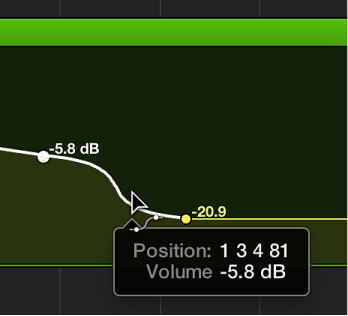
Hold down Control-Shift while dragging an automation curve with the Pointer tool.