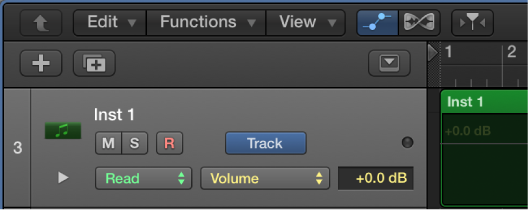

Before you can add automation points to a track’s automation curves, you need to show the automation curves. Automation curves are displayed as colored curves and points on top of audio and MIDI regions across the track, running the length of the project. You can choose whether to view and edit automation across the track (track-based automation) or only within the track’s regions (region-based automation).
After you show the automation curves, you can choose which parameter you want to work with—Volume fader, Pan knob, or any other track parameter. You can work with multiple parameters on the same track, or you can work in separate subtracks, which appear below the main track.
Do one of the following:
Choose Mix > Show Automation (or press A).
Click the Show/Hide Automation button  in the Tracks area menu bar.
An Automation button, an Automation Parameter pop-up menu, and an Automation Mode pop-up menu appear in each track header. Any existing automation is displayed on the track, or within the regions. You can choose the parameter you want to automate—Volume fader, Pan knob, or any other track parameter—from the Automation Parameter pop-up menu.
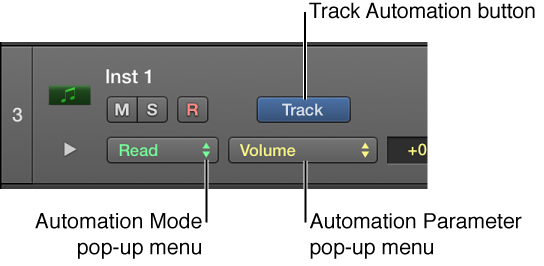
Click the Automation button in the track header to switch between track-based and region-based automation.

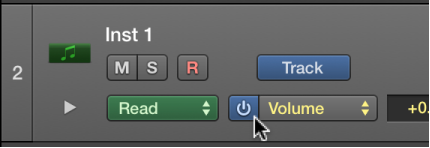
Place the pointer over the Automation button, then click the On/Off button that appears.
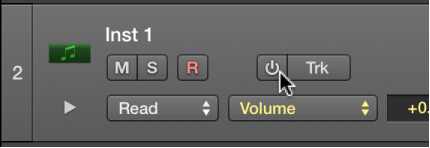
This setting applies to all automation on the track, regardless of whether track-based or region-based automation is selected. When you hide automation curves, they are not deleted, just hidden.
Do one of the following:
Choose a parameter from the Automation Parameter pop-up menu in the track header.
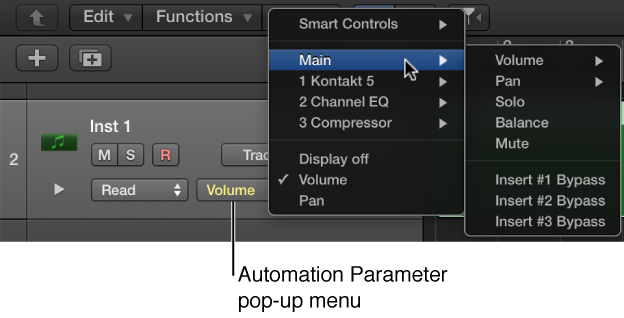
Control-click the track lane, then choose an automation parameter from the shortcut menu that appears.
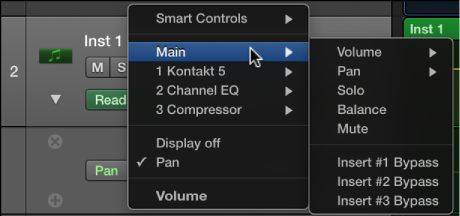
Volume, pan, solo, and mute are shown in the pop-up menu. A submenu is also shown for each plug-in on the track. These are numbered and named after the slot position and plug-in: 1 EXS24, for example.
Choose a parameter from the Automation Parameter pop-up menu in the track header.
Place the pointer over the Automation Parameter pop-up menu, then click the On/Off button that appears.
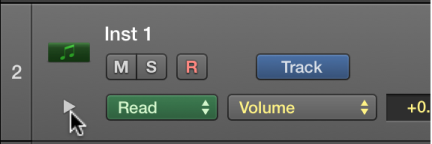
Click the disclosure triangle at the lower left of a track header.
Choose the parameter that you want to automate from the Automation Parameter pop-up menu in the track header.
To add additional subtracks, click the “+” that appears when you place the pointer over the track header.
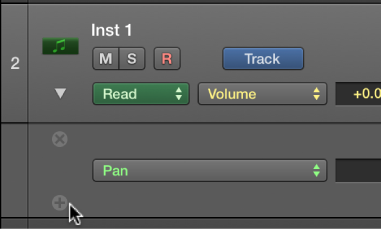
All additional automation subtracks are revealed. Each additional subtrack is set to an automation parameter type that’s already recorded but not currently shown. The active automation parameter remains on the main track.
Do any of the following:
To add a subtrack: Place the pointer over the subtrack header, then click the “+” that appears.
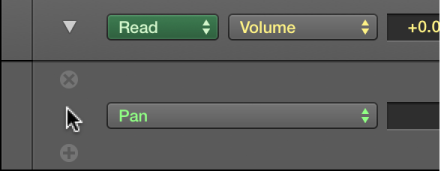
To remove a subtrack: Place the pointer over the subtrack header, then click the “x” that appears.
The selected subtrack is removed without deleting its automation.
To reorder subtracks: Drag the subtrack up or down.
Tip: You may find it easier to work with automation curves at a higher zoom level. To do so, drag the lower edge of the track header downward.