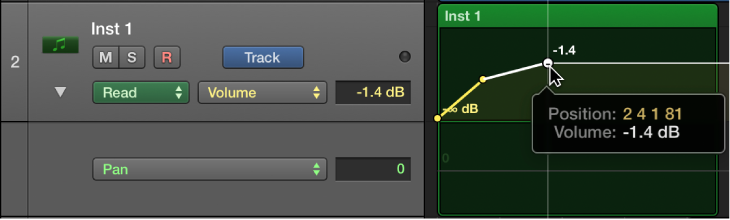

To create changes over time to volume, pan, and effects settings, you add automation points to a track’s automation curve at different places, and then adjust the automation points so the value of the setting changes. You can adjust automation points by moving them up or down to a new value or by moving them left or right to a new point in the timeline. Numerical values are displayed alongside each automation point. You can also add automation points at selection area or region borders.
Do any of the following:
To add an automation point to an empty automation curve: Click anywhere in the automation track.
This adds an automation point at the project start position, using the current fader value.
To add an automation point to an existing automation curve, do any of the following:
Click the automation curve.
Double-click an empty area of the automation track.
Click on or outside the automation curve with the Pencil tool.
All of these actions add an automation point at the clicked position.
Do any of the following:
Drag an automation point up or down to change its value.
Drag an automation point left or right to move it to a different point in the timeline. Use the ruler to make sure automation points are aligned with a beat or measure.
 You can do the following when Show Advanced Tools is selected in the Advanced preferences pane:
Drag across a region with the Marquee tool, then click the marquee selection.
You can do either of the following when Show Advanced Tools is selected in the Advanced preferences pane:
To add one automation point at each region border: Select the region, then choose Mix > Create Track Automation > Create 1 Automation Point at Region Borders.
To add two automation points at each region border: Select the region, then choose Mix > Create Track Automation > Create 2 Automation Points at Region Borders.