Play drums and adjust kit piece settings

Drum Kit Designer shows a 3D representation of the drum kit for the currently loaded patch or plug-in setting.

For all kits, you can play the drums; edit the pitch, sustain, and volume of each drum kit piece; and exchange the kick and snare drums. When working with Producer Kits, you can additionally exchange toms, cymbals, and hi-hat. Producer Kits also let you turn different microphones, such as overheads or room mics, on or off.

Note: Producer Kits and some drums are only available after you download additional content.

Drum Kit Designer also provides additional settings for adjusting the gain of other instrument pieces, such as the shaker, cowbell, and so on.

Play a drum

The first time you click any drum after opening the plug-in, one or two panels open. You can exchange individual drums in the Exchange panel to the left, and edit individual kit piece settings in the Edit panel to the right.

Adjust kit piece settings (all kits)

  1. Click a drum.

    The Edit panel opens to the right.
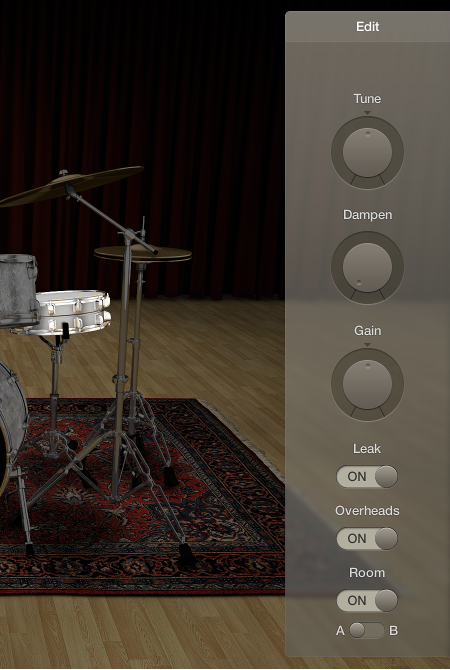
    Figure. The Edit panel in Drum Kit Designer.
    • Toms: Click the tab for the tom you want to edit, or click the All tab to adjust the tone of all toms.

    • Cymbals: Click the tab for the crash cymbal you want to edit, or click the All tab to adjust the tone of both crash cymbals. The ride cymbal can be edited directly.

    • Kicks and snares: There are no tabs, so make your adjustments with the controls.

  2. Do any of the following to adjust settings:

    • To adjust the pitch: Drag the Tune knob vertically, or double-click the field and enter a new value.

    • To adjust the amount of damping: Drag the Dampen knob vertically, or double-click the field and enter a new value.

    • To adjust the volume: Drag the Gain knob vertically, or double-click the field and enter a new value.

  3. Click anywhere in the plug-in window background to close the panels.
Adjust mic settings (Producer Kits only)

In the Edit panel, do any of the following:

Adjust the volume of other percussion instruments

  1. Click the disclosure triangle at the bottom-left corner of the plug-in window to show additional settings.

    Figure. The plug-in disclosure triangle.
  2. Drag the slider (or drag vertically in the field) to adjust the volume of the corresponding instrument:

    Figure. The additional parameters in Drum Kit Designer.
    • Shaker Gain

    • Tambourine Gain

    • Claps Gain

    • Cowbell Gain

    • Sticks Gain