

Using Drummer, you can add a virtual drummer to your project. You can choose from different genres, and choose different drummers in each genre. Each drummer has a specific drum kit and playing style. You can choose a drummer preset, edit drum settings to adjust the playing style, exchange drum kits, and choose individual drum sounds.
To work with Drummer, you add a Drummer track to the project. A Drummer track is similar to a software instrument track, but it contains only Drummer regions, rather than MIDI regions. Both track and region parameters can be edited using the dedicated Drummer Editor.
Click the Add Tracks button  in the toolbar.
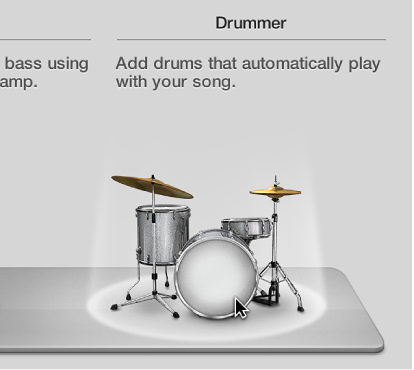
Click the Drummer icon (the drum kit) at the top of the New Tracks dialog.
Click Create.
A Drummer Track Stack is added, along with two 8-bar regions on the main track. The Library opens, and a default patch is loaded to the track.
Click the genre name on the left side of the Drummer Editor to see all genres.
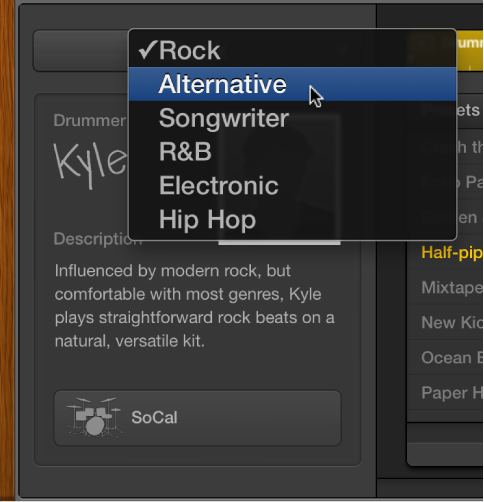
Click a genre.
The available drummers for the selected genre appear below the genre name.
Select a drummer.
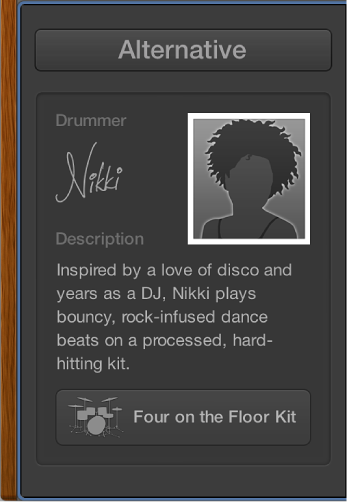
A drummer card appears, showing the drummer’s name, a description of the drummer’s style, and the drum kit for that drummer.
Each drummer includes a variety of presets, which appear to the right of the drummer card.
Click a preset.
A preset consists of a number of region settings, visible to the right of the presets area.
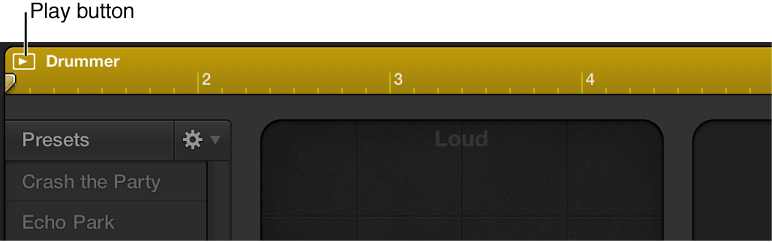
Click the Play button in the ruler at the top of the Drummer Editor.
Reposition the puck in the XY pad.
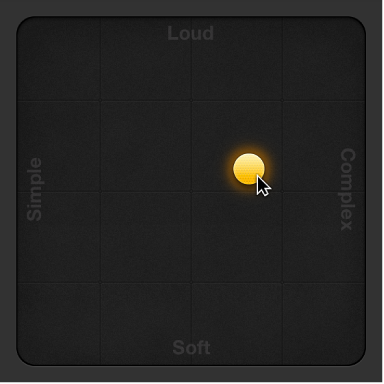
The farther right you place the puck, the more complex the sound becomes; the higher you place the puck, the louder the sound plays.
Do any of the following:
For Tambourine, Shaker, and Handclap: Click an instrument, then drag the Percussion slider or choose an increment.
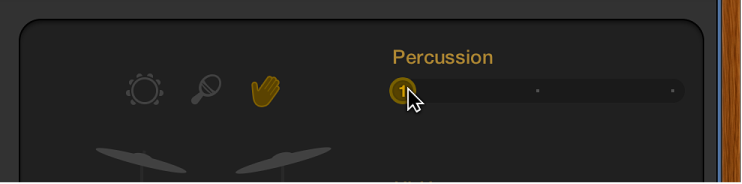
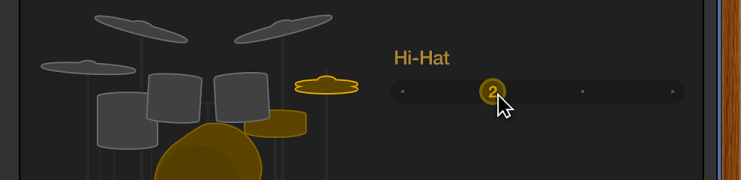
For Cymbals, Toms, and Hi-Hat: Click a kit piece, then drag the kit piece slider or choose an increment.
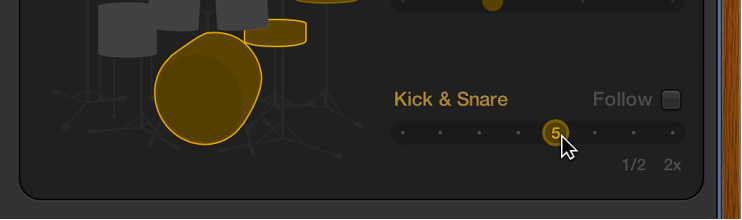
For Kick and Snare: Drag the Kick & Snare slider or choose an increment.
Click the plug-in button at the bottom of the drummer’s card to open Drum Kit Designer.
Click a drum.
The Exchange panel opens to the left if exchange pieces are available for that kit piece.
Click the Info button of a selected kit piece to view its description.
Click the kit piece that you want to exchange in the Exchange panel. You may need to scroll in order to find the one you want to use.
The piece is exchanged and the respective drum sound is loaded.
Note: The toms and crash cymbals can only be exchanged as a group.
Click anywhere in the plug-in window background to close the panels.
Do any of the following:
Drag the Fills knob downward to reduce, or upward to increase, the number and length of fills.
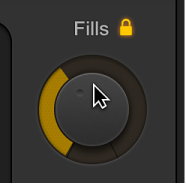
You can click the lock to prevent any changes to the fills setting when switching presets or drummers.
Drag the Swing knob vertically to adjust the shuffle feel of the currently playing pattern.
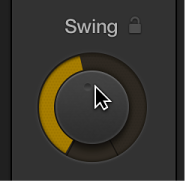
You can click the lock to prevent any changes to the swing setting when switching presets or drummers.
Click the Details button to reveal the following knobs:
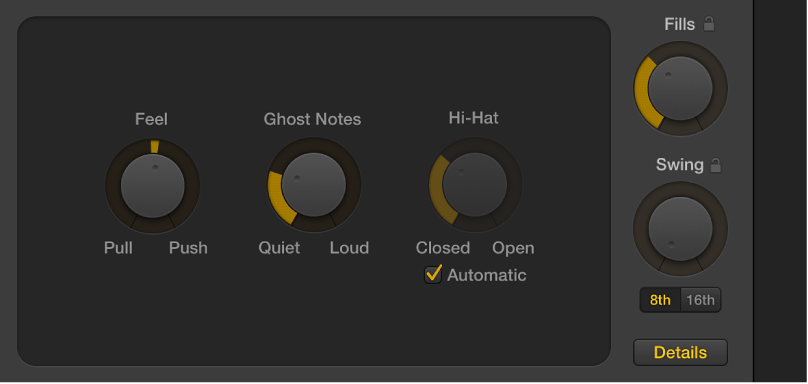
Drag the Feel knob to the right to have the drummer play ahead of the beat (Push), or to the left to play behind the beat (Pull).
Drag the Ghost Notes knob to adjust the level of ghost notes—syncopated snare and kick hits—in the beat.
Note: The presence of ghost notes depends on the chosen drummer and the complexity setting.
Drag the Hi-Hat knob to adjust the degree to which the Hi-Hat is opened and closed during the drum performance.
Note: This is only relevant if the hi-hat is selected in the drum kit representation.
Any changes or selections you make in the Drummer Editor affect only the selected region, not the entire track. For more information about using Drummer in your projects, see Drummer overview.