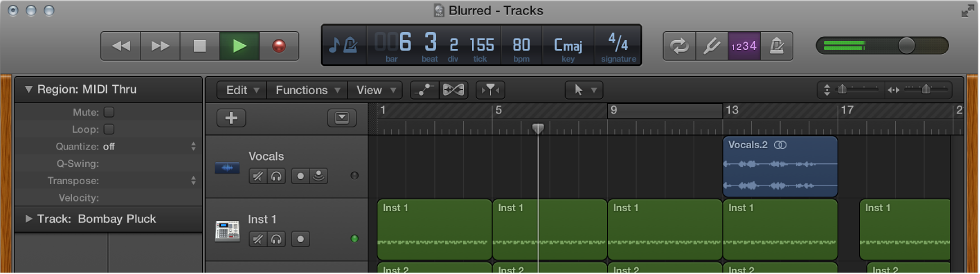

You can play back the project at any time to hear your latest changes. You control playback and navigate the project using the playhead, the ruler, and the transport buttons, located in the control bar.
The playhead extends from the top to the bottom of the Tracks area, and moves as the project plays, showing the currently playing point in the project. At the top of the playhead is a triangle that you can drag to move the playhead to a different time position, or scrub the project by moving the playhead across the Tracks area to quickly locate a particular musical passage.
At the top of the Tracks area, the ruler shows units of time in bars, beats, and beat divisions (depending on the zoom level).
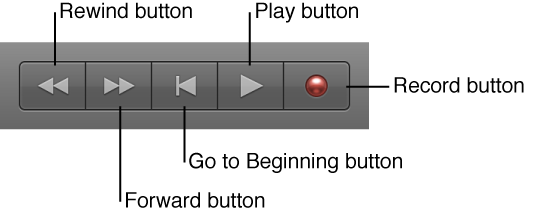
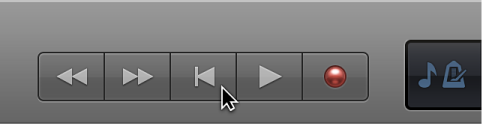
The control bar contains a group of buttons called transport buttons that you can use to control playback, move the playhead, and start recording. The transport buttons include the following:
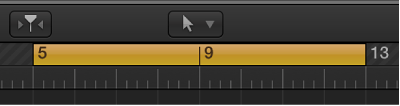
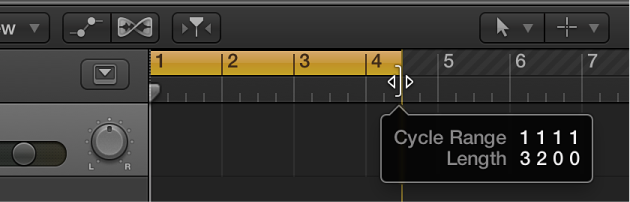
You can use the cycle area to define part of a project to play back repeatedly. The cycle area can be used for composing, practicing a part before recording, recording multiple takes, and other purposes. When you turn on the cycle area, it appears as a yellow strip in the upper part of the ruler.
To start playback: Click the Play button (or press the Space bar).
When the project is playing, the Go to Beginning button becomes a Stop button.
To stop playback: Click the Stop button (or press the Space bar again).
To start playback from the clicked position: Double-click the lower part of the ruler. Double-click again to stop playback.
Do any of the following:
Drag the playhead to a new position.
Click the lower part of the ruler to move the playhead to the clicked position. If the project is playing, playback continues from the clicked position.
While the project is playing, click the Rewind or Forward button.
Each time you click Rewind, the playhead jumps back to the previous bar. Each time you click Forward, the playhead jumps forward to the next bar.
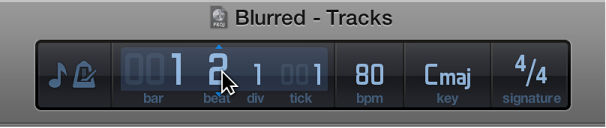
In the LCD, click-hold one of the numbers in the Position display and drag vertically.
Click the Go to Beginning button in the control bar (or press Return).
Click the Cycle button  in the control bar (or press C) to activate the cycle area.
The cycle area appears in the ruler.
Hold the pointer over either the left or right edge of the cycle area, then drag to resize it.
The left and right edges of the cycle area are called locators.
Press the Space bar to start playback.
The playhead loops continually within the cycle area.
Grab the cycle area by the middle (the pointer turns into a hand) and drag it left or right.
For iPad users, a separate application is available that you can use to navigate Logic Pro projects, and perform mixing, editing, and other functions, on your iPad. The Logic Remote app is available on the App Store.
For more information about playback and navigation, see Play a project and Control playback with the transport buttons. For information about using the cycle area, see Use the cycle area.