 When Additional Score Options is selected in the Advanced preferences pane, you can create score symbol sets to display different symbol groups in a particular order.
The Part box displays score symbols arranged in groups. You can show and hide symbol groups by selecting or deselecting the group buttons at the top of the Part box, and reorder the groups in the Part box.
When Additional Score Options is selected in the Advanced preferences pane, you can create score symbol sets to display different symbol groups in a particular order.
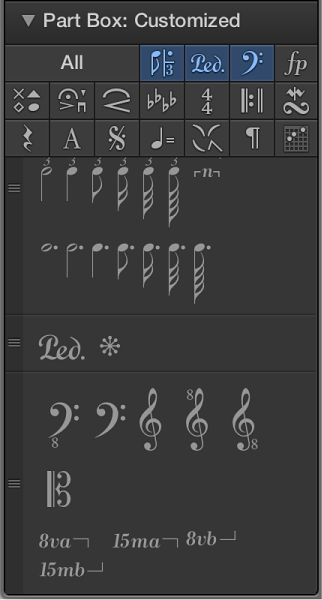
Click a symbol group’s button at the top of the Part box to view the symbols for that group.
Click a button again to deselect its group.
The corresponding group appears in the Part box, below other selected symbol groups.
Drag a symbol group up or down by the handle on its left side.
Click the All button.
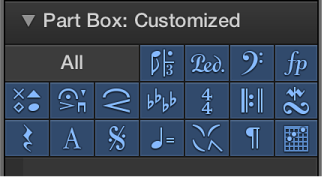
Drag the Part box out by its title bar.
Click the buttons for the symbol groups you want to display.
You can open multiple floating Part box windows, and display different score symbols in each one. Selecting a symbol in a floating Part box window updates the selection in all other Part box windows, until you deselect the symbol, close the window in which it was selected, or select a symbol in another floating Part box window.
Use any of the following key commands to select score symbols or groups in a floating Part box window:
Next Part Box Symbol
Previous Part Box Symbol
Next Part Box Group
Previous Part Box Group
Click-hold the name of the current score symbol set in the Part box title, then choose a set from the Part Box Sets pop-up menu.
Click-hold the name of the current score symbol set in the Part box title, then choose New Set from the Part Box Sets pop-up menu.
Click-hold the name of the current score symbol set in the Part box title, then choose Rename Set from the Part Box Sets pop-up menu.
Enter a new name for the score symbol set.
Click-hold the name of the current score symbol set in the Part box title, then choose Delete Set from the Part Box Sets pop-up menu.
The inspector channel strips appear below the Part box in the Score inspector. Depending on the size of the Score Editor and how many groups appear in the Part box, it may not be visible.
Click the disclosure triangle to close the Part box, and, if necessary, other inspectors in the Score inspector.