Open the I/O Assignment preferences
Choose Logic Pro > Preferences > Audio, then click I/O Assignments (or use the Open Surround Preferences key command).
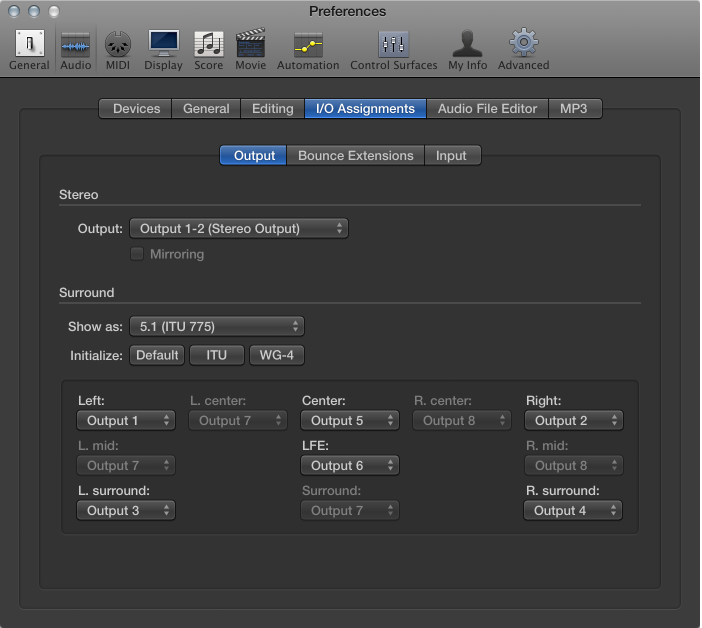

Before you can create a project in surround, you need to specify which outputs of your interface are connected to which speaker. If you’re recording in surround, you also need to specify the inputs of your audio interface.
These configurations are made in the Output and Input panes of the Audio > I/O Assignment preferences. The I/O Assignments pane features three subpanes: Output, Bounce Extensions, and Input. All three subpanes are linked, but can be adjusted independently.
Note: In all but the rarest circumstances, the default settings for each surround format should meet your needs.
Choose Logic Pro > Preferences > Audio, then click I/O Assignments (or use the Open Surround Preferences key command).
Click either Output or Input.
Choose the surround format you want to work in from the “Show as” pop-up menu.
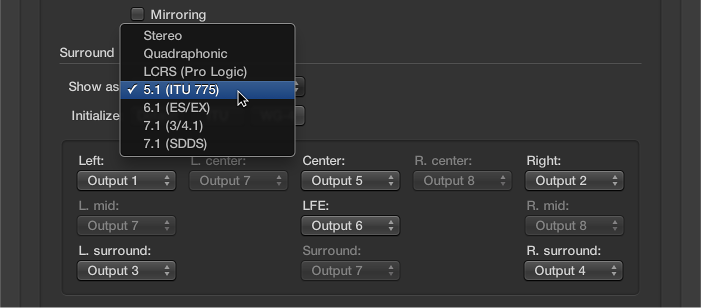
This action automatically sets the input and output channel pop-up menus in both the Output and Input panes.
Note: The surround format chosen here only alters the layout/routing of channels to speakers in the I/O Assignments pane. The actual project surround format is determined in the Project settings. See Set the project surround format.
Do one of the following:
In the Output pane, choose the output of your audio interface from each of the active pop-up menus: Left, Center, Right, and so on.
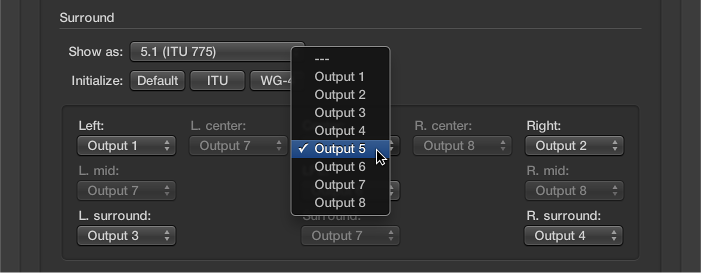
If you want to work on, or create, a surround project on a computer that is not equipped for surround playback, choose outputs that don’t exist for your hardware. These are shown in parentheses—for example, (Output 17) or (Output 32).
In the Output pane, click one of the three Initialize buttons below the “Show as” pop-up menu.
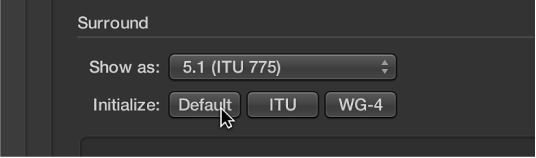
Default: Activates the default setup of Logic Pro. For example, for the 5.1 format, output 1 is routed to the left speaker, output 2 to the right one, output 3 is assigned to left surround, output 4 to right surround, output 5 to the center speaker, and output 6 to the LFE channel.
ITU: Assigns the International Telecommunications Union standard, used by many professionals.
WG 4: Uses the WG4 standard, set by the DVD Forum for DVD-Audio.
Do one of the following:
Choose the input of your audio interface from each of the active pop-up menus: Left, Center, Right, and so on.
Click one of the three Initialize buttons below the “Show as” pop-up menu.
Default: Activates the default setup of Logic Pro. For example, for the 5.1 format, input 1 is routed to the left speaker, input 2 to the right one, input 3 is assigned to left surround, input 4 to right surround, input 5 to the center speaker, and input 6 to the LFE channel.
ITU: Assigns the International Telecommunications Union standard, used by many professionals.
WG 4: Uses the WG4 standard, set by the DVD Forum for DVD-Audio.
Click Bounce Extensions.
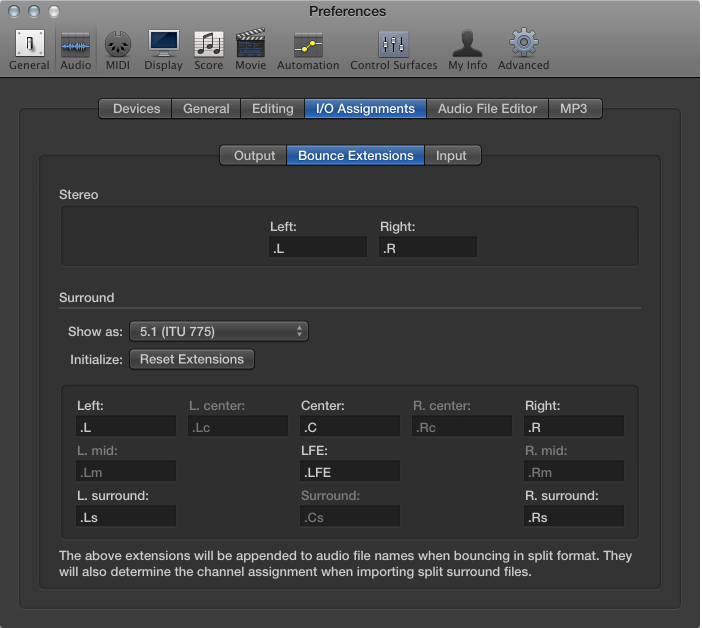
Enter a new extension name in any of the active fields.
For example, the default left extension “.L” could be renamed “.Left,” or the left surround extension “.Ls” could be changed to “.LSurr.” Don’t forget the period before the extension.
If you change your mind, click the Reset Extensions button to revert to default entries.
Note: Changing the extension has no impact on the files—it simply makes them easier to identify. If you find the defaults clear enough, there’s no need to change them.