Open the Undo History window
Choose Edit > Undo History (or press Option-Z).
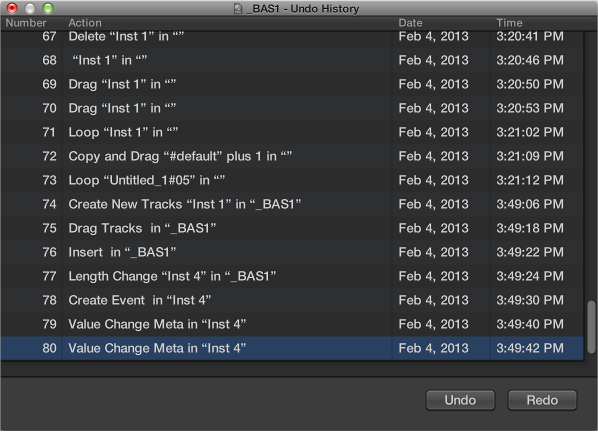
The Undo History window displays a list of all actions that can be undone. The most recent step (editing operation), which will be the first to be undone, is selected.

You can undo one or more edit operations if you change your mind, and redo edits you have undone. Logic Pro includes an Undo History window where you can see all edits that can be undone in a time-ordered list. You can also change the number of steps that can be undo in Logic Pro preferences.
Choose Edit > Undo (or press Command-Z) immediately after making the error.
Virtually all edits, including moves, deletions, renaming, and parameter changes; and the creation of new events, regions, channel strips, and more, can be undone.
Choose Edit > Undo History (or press Option-Z).
The Undo History window displays a list of all actions that can be undone. The most recent step (editing operation), which will be the first to be undone, is selected.
Click any entry to undo or redo all steps between the clicked and highlighted entries.
Command-click the step.
This will undo or redo an isolated step without influencing all steps between the clicked and highlighted entries.
Choose Edit > Delete Undo History.
WARNING: Take care with this command. No undos or redos are possible for the deleted steps, once the Undo History has been erased.
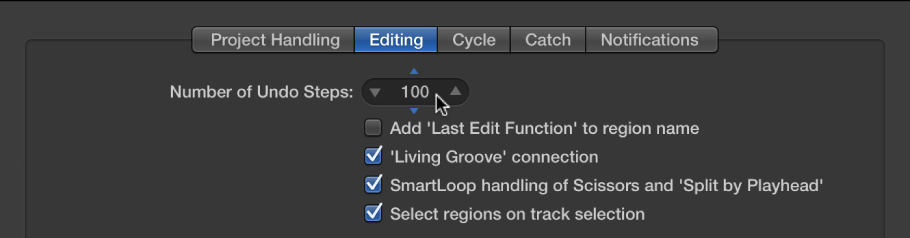
Choose Logic Pro > Preferences > General, then click Editing.
Change the number in the Number of Undo Steps value slider.