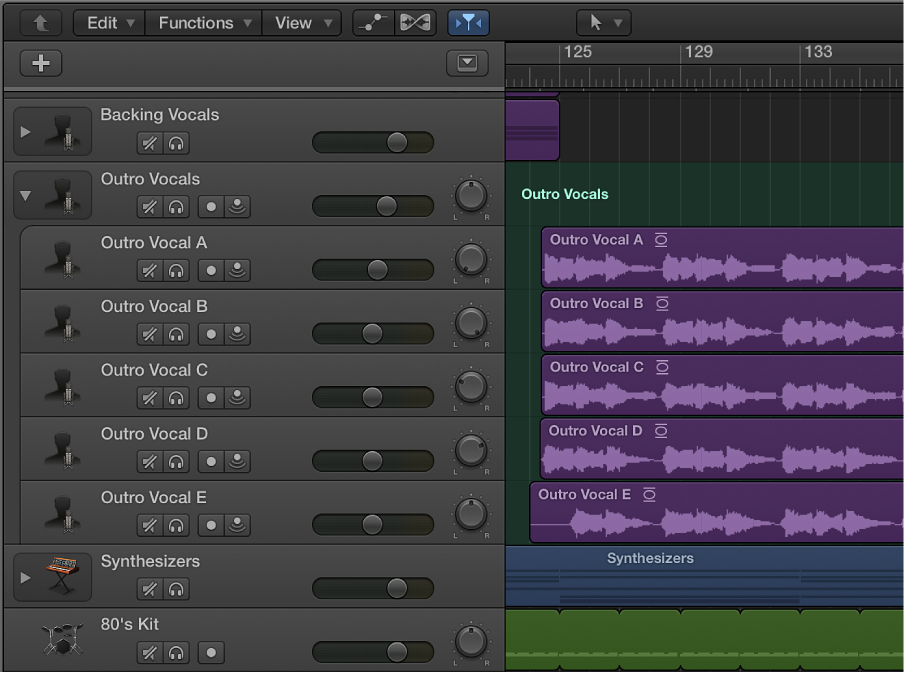

Track Stacks provide a convenient way to organize and control multiple tracks, to manage projects with high track counts, and to create audio subgroups. There are two types of Track Stacks:
Folder stacks let you combine multiple tracks and control them as a unit, without changing their individual routing.
Summing stacks let you combine multiple tracks and route their output to an audio subgroup.
Both types have a main track and one or more subtracks. The track header for the main track features a disclosure triangle that lets you show or hide the subtracks. When you close the stack, only the main track appears in the Tracks area.
In the demo project, the Backing Vocals, Synthesizers, and Song FX tracks are folder stacks, and the Outro Vocal Stack is a summing stack.
Select the tracks you want to include in the Track Stack. The selected tracks can be adjacent or nonadjacent.
Choose Track > Create Track Stack.
In the Track Stack dialog, do one of the following:
To create a folder stack: Select Folder Stack, then click OK.
To create a summing stack: Select Summing Stack, then click OK.
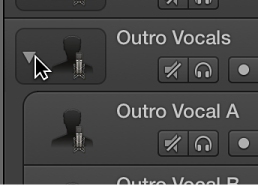
Click the disclosure triangle to the left of the track icon in the main track.
To hide the subtracks, click the disclosure triangle again.
Drag the header of the track you want to add between two of the subtracks in the Track Stack.
Note: When you add a track to a summing stack, its routing changes to the aux assigned to the main track.
Drag a subtrack by its header up or down inside the Track Stack.
Drag the subtrack outside of the Track Stack (below the last subtrack, or above the main track).
When you remove a subtrack from a summing stack, the track’s output routing changes from the aux used by the main track to the main outputs.
For more information about using Track Stacks in your projects, see Track Stacks overview.