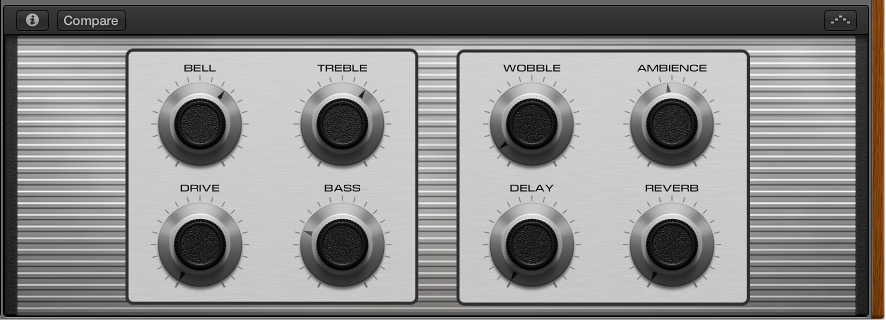

Smart Controls let you quickly adjust the sound of a track, without having to edit channel strip settings or open individual plug-in windows.
Each Smart Control includes a set of screen controls that you can adjust to control the sound of the patch. Smart Controls typically include EQ or tone controls, reverb and other effects controls, and controls specific to the type of track or instrument. For example, the Smart Control for a synthesizer might include screen controls for choosing the waveform and adjusting the resonance and filter cutoff, while one for a string instrument might include controls for changing the articulation.
When you open the Smart Controls pane, you see the screen controls for the selected track. Each screen control is labeled to make its function easy to understand.
Select a track, then click the Smart Controls button  in the control bar.
Turn the knobs, click the switches, and move the other screen controls to see how they affect the sound of the patch.
Each screen control has a text label indicating what aspect of the sound it controls.
You can also change the layout for a Smart Control, save your own Smart Controls, map screen controls to channel strip and plug-in parameters, and assign controllers on your MIDI devices to screen controls. For more information about using Smart Controls, see Smart Controls overview.