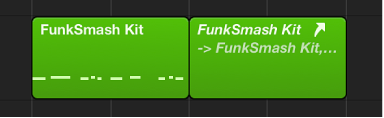

You can create an alias for a MIDI region or a folder. An alias is a reference to a region, and looks similar to a normal region in the Tracks area. If you alter the original region, all aliases of the region are similarly altered.
Aliases can be useful when you want to repeat a phrase or riff in different parts of an arrangement. If you make changes to the original region after creating aliases from it, the changes apply to all its aliases throughout the project. If you want to edit one of the aliases without changing the others, you can turn that alias into an independent region (a region copy) and edit it independently.
Aliases do have some differences from their “parent” region: you can give each alias its own name, and edit region parameters for each alias independently.
Alias names appear in italics to distinguish them from normal regions. If you name an alias, its parent region name is shown below the alias name (provided that the zoom level is adequate).
Any changes made to the parent region name appear on all its aliases.
Do one of the following:
Option-Shift-drag the region to the position where you want the alias to start.
Select the track you want to create the alias on, position the playhead, select the region you want to create an alias from, then choose Functions > Region Alias > Make Alias (or use the Make Alias key command).
You can also use the Repeat Regions command.
If several regions are selected, their relative time and track positions are retained. The selected track is the destination track for the first region along the Tracks area.
You can assign a new original region to an existing alias. This is exceptionally handy for arranging tasks where the structure is right, but the part is wrong. You can copy a region to a new track, create an alias, mute the existing region, and click Play, or use the far simpler method below:
Select both the alias and the intended new original region.
Choose Functions > Region Alias > Re-Assign Alias (or use the Reassign Alias key command).
If you forget where the original is for a certain alias, you can search for it. Do one of the following:
Select the alias, then choose MIDI > Alias > Select Original (or use the Find Original of Alias key command).
Choose Functions > Region Alias > Select Aliases of Region.
If you delete a source region that one or more aliases was derived from, Logic Pro asks if you want to convert the aliases to independent MIDI regions, or keep the aliases. Do one of the following:
To cancel the procedure: Click Cancel.
To change all alias MIDI regions into real copies: Click Convert.
To delete the parent region, and retain all (orphaned) alias regions: Click Keep. Although such orphan aliases serve no useful purpose, Logic Pro doesn’t automatically delete them, in case you decide to reassign them to new originals at a later stage.
If your project file contains unneeded aliases, you can quickly tidy up by selecting and deleting all orphan aliases.
Choose Functions > Region Alias > Select Orphan Aliases (or use the corresponding key command).
Choose Functions > Region Alias > Delete Orphan Aliases (or use the corresponding key command).
You can create a real region from an alias; its contents are identical to those of the original region referenced by the alias, but its playback parameters are those of the alias. After it’s been converted to a real region, you can edit it (or the original parent region), without affecting the new real region.
You can also double-click an alias to open a dialog that asks whether you want to create and edit a real copy, or edit the original.
If you double-click an alias to edit it, Logic Pro assumes that you either want to edit the original, or turn the alias into a real region. You are asked whether you want to create and edit a real copy, or to edit the original.
Choose Functions > Region Alias > Convert to Region Copy from the Tracks area menu bar (or use the Convert Alias to a Region Copy key command)