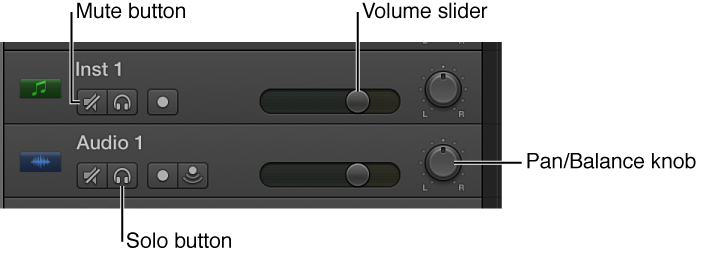

Each track has a track header that shows the track name and icon, as well as a number of track controls including Mute, Solo, and Record Enable buttons. Audio tracks also feature an Input Monitoring button. The track headers are located along the left side of the Tracks area, so you can easily see the mute, solo, and other settings for all tracks while working.
Some track header controls, including volume, pan, mute, and solo controls, correspond to channel strip controls on the track’s channel strip in the Mixer—changing one (for instance, dragging the Volume slider in a track header) produces a corresponding change in the other (in this case, the Volume fader on the track’s channel strip).
Click the track’s Mute button  in the track header.
Click the track’s Solo button  in the track header.
The Solo button turns yellow, and the Mute buttons of all unsoloed tracks flash blue. Click the button a second time to restore the track to its previous state.
In the track header, drag the Volume slider left to lower the volume level, or drag it right to raise the volume level.
Option-click the slider to return it to a neutral level (0 dB gain).
In the track header, drag the Pan/Balance knob counterclockwise to pan to the left, or drag clockwise to pan to the right. The dot on the wheel indicates the current position.
Option-click the Pan/Balance knob to return it to the center position.
Note: You might have to resize the track header in order to see the Pan/Balance knob.
Click-hold a button on a track header, then drag the pointer up or down over additional tracks.
The corresponding buttons on all the swiped tracks switch to the same state.
For more information about working with tracks, see Tracks overview. For information about using the track controls, see Track header overview.