 When Show Advanced Tools is selected in the Advanced preferences pane, you can configure global tracks:
Global tracks can be displayed in the Tracks area and in the time-based editors (including the Audio Track Editor, Piano Roll Editor, and Step Editor). In each window, global tracks appear below the ruler. You can select which global tracks to display, and resize and reorder global tracks. By default, the Arrangement, Marker, Signature, and Tempo tracks are visible when you show the global tracks.
When Show Advanced Tools is selected in the Advanced preferences pane, you can configure global tracks:
Do one of the following:
Choose Track > Global Tracks > Show Global Tracks, or use the Show/Hide Global Tracks key command (G).
Click the Global Tracks button  .
.
In the Tracks area, the Global Tracks button appears above the track headers. In the editors, it appears on the left side of the editor.
Do one of the following:
Choose Track > Global Tracks, then choose specific tracks from the submenu.
Control-click anywhere in the global tracks header area, then choose specific tracks from the shortcut menu.
Do one of the following:
Choose Track > Global Tracks > Configure Global Tracks, then select the corresponding checkboxes.
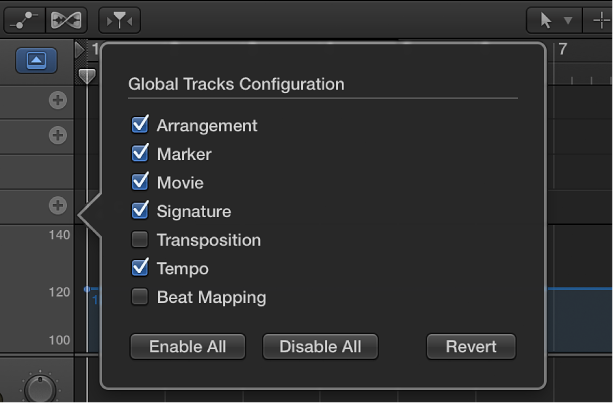
Control-click anywhere on a global track, choose Configure Global Tracks from the shortcut menu, then select the corresponding checkboxes.
The tracks you select in the Global Tracks Configuration dialog only affect the active window.
You can also assign and use any of the following Show/Hide key commands for each individual ruler track: Marker, Transposition, Signature, Tempo, Beat Mapping, and Movie. The key commands work directly, without having to open the Global Tracks Configuration dialog.
Tip: Click the Enable All or Disable All buttons to show or hide all global tracks, or use their corresponding key commands—Show All Global Tracks and Hide All Global Tracks.