
Record to multiple audio tracks simultaneously
Set the instrument or microphone input source for each track you want to record to.
Click the Record Enable button
 in the track header of each track you want to record to.
Move the playhead to the point in the ruler where you want to start recording.
Logic Pro includes a metronome, which plays a steady beat to help you play in time while recording. You can turn this on or off using the Metronome button
 in the control bar.
Click the Count-in button
 in the control bar to have the metronome play a predefined count-in before recording starts.
Note: For the initial setup, choose Record > Count-in, then choose a measure.
Click the Record button
 in the control bar (or press R) to start recording.
Start singing or play your instrument.
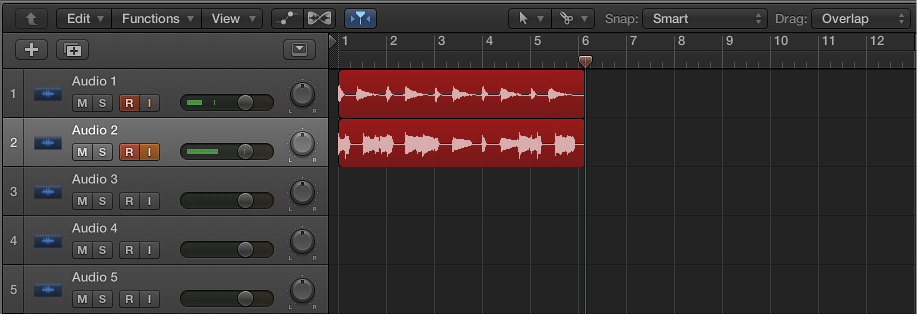
A new audio region appears on each of the record-enabled tracks.
Click the Stop button
 in the control bar (or press the Space bar) to stop recording.