 MIDI Draw is only available in the Score Editor when Show Advanced Tools is selected in the Advanced preferences pane.
MIDI Draw works much like track automation, with a couple of key differences. MIDI Draw is restricted to MIDI regions. It uses MIDI controller values, rather than the internal meta events used by the track automation system. MIDI controller values are represented as curves between automation points.
You can edit automation points and curves in a similar way to track automation. You can record MIDI controller events in real time on MIDI tracks or use MIDI Draw to create and edit controller events in the Tracks area, Piano Roll Editor, and Score Editor.
MIDI Draw is only available in the Score Editor when Show Advanced Tools is selected in the Advanced preferences pane.
You can also use the Step Editor, which is built specifically for MIDI controller editing, providing more precision and flexibility than the available MIDI Draw options.
Do one of the following:
In the Tracks area: Choose View > MIDI Draw from the Tracks area menu bar, then choose an event type.

In the Piano Roll or Score Editor: Click the MIDI Draw button.
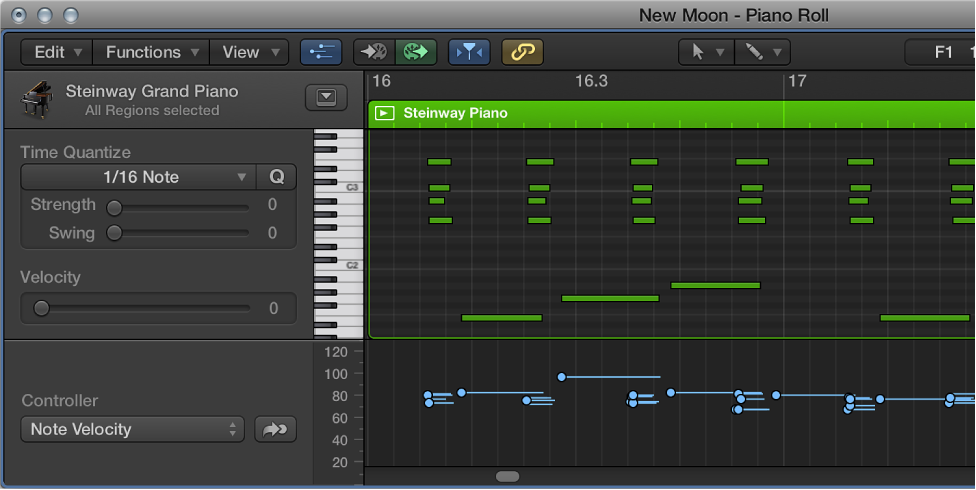
A MIDI Draw area is displayed below the editing area. You can choose event types from the MIDI Draw pop-up menu to the left of the MIDI Draw area.
Choose View > MIDI Draw > Off from the Tracks area menu bar.
Choose View > MIDI Draw > Channel from the Tracks area menu bar, then select a channel number.
Choose View > MIDI Draw > Other from the Tracks area menu bar.
Select the controller number and the MIDI channel in the MIDI Draw window.
Choose View > MIDI Draw > Autodefine from the Tracks area menu bar.
Autodefine mode sets the MIDI Draw parameters automatically, making the first event in the region visible.