Protect, copy, rename, and delete screensets

You can protect, copy, rename, and delete a screenset.

Prevent the current screenset from being altered

Important:  The File > New command unlocks all screenset locks.

Copy screensets

  1. Switch to the screenset you want to copy, then choose Screensets > Duplicate (or use the Duplicate Screenset key command).

  2. In the Duplicate Screenset dialog, enter the target screenset number (the screenset number that you want to copy to), and give it a name.
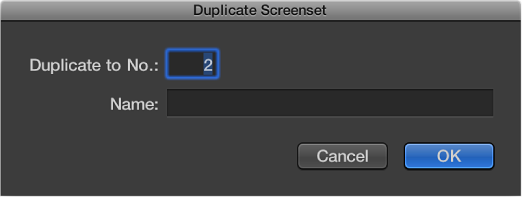
    Figure. Duplicate Screenset dialog.
  3. Click OK.

Rename the current screenset

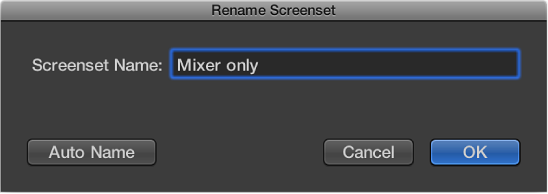
  1. Choose Screensets > Rename (or use the Rename Screenset key command).

  2. In the Rename Screenset dialog, do one of the following:

    Figure. Rename Screenset dialog.
    • Enter a new name.

    • Click the Auto Name button to automatically name the screenset. The default is the visible window names. The name is automatically updated whenever a window or view is opened or closed.

  3. Click OK.

Delete the current screenset