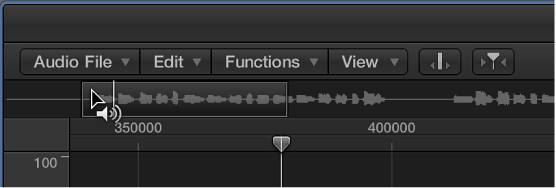

You can use the Audio File Editor navigation features to move to specific parts of an audio file, making selection and editing simpler, faster, and more accurate.
Clicking the waveform overview displays the selected area (surrounding the playhead position) in the waveform display. The scroll bars and zoom controls are used in the same way as in other windows.
Choose one of the following Edit > “Go to” menu commands to quickly navigate to a specific position in an audio file.
Selection Start (default key command: Control-Shift–Left Arrow)
Selection End (default key command: Control-Shift–Right Arrow)
Region Start (default key command: Control–Left Arrow)
Region End (default key command: Control–Right Arrow)
Region Anchor (default key command: Control–Down Arrow)
Previous Transient (default key command: Command–Left Arrow)
Next Transient (default key command: Command–Right Arrow)
The Audio File Editor includes a feature that scans a selected audio file for its loudest point. When it locates the loudest point, it positions the playhead at this point in the waveform display.
Choose Functions > Search Peak (default key command: Shift-P).
You can scan a selected audio file, or a selection, for sections containing silence. When the Audio File Editor locates sections containing silence, it moves the playhead to the start point of the first silent section.
Choose Functions > Search Silence (default key command: Shift-S).
This command can be used repeatedly to select and remove, or to modify, silent sections in your audio files.