
Sounds that contain melodic or harmonic material, such as those that are not purely drums or percussion, present more challenges when morphing. In these cases, it’s especially important to understand some of the limitations and to know which synthesis options will deliver the best results. This group of tutorial tasks covers morphing between sounds that contain melodic material produced by monophonic instruments such as a solo voice, a synth lead, or an orchestral instrument like a flute or oboe. The example files have the same basic length, which makes results more predictable than if file lengths are quite different.
Note: Images shown in tutorials are not specific to presets used in tasks. They are included as a guide to help you find areas and parameters in the Alchemy interface.
Switch to advanced view, and choose Clear from Alchemy’s File menu.
This resets Alchemy’s settings and makes it easier to build sounds from scratch.
Click the source select field for source A, and choose Import Audio from the pop-up menu.
The Import window opens.
Type “Amanda Aa Ee Ay Oh C3” in the search field, and drag the file to the Dropzone area of the Import window.
Click the Additive and Formant analysis mode buttons at the lower left, then click the Import button.
This determines the synthesis engine used for resynthesis of the audio sample. This combination is generally best when you are working with melodic, monophonic audio files. When analysis is complete, you can trigger the audio at its native pitch by playing C3 on your keyboard. It’s important to understand that you are hearing a resynthesized version of the original sound that is being generated by the additive synthesis engine and further shaped by the formant engine.
Tip: It’s best to select the same analysis mode for all audio you plan to morph between. If you don’t do this, the primary synthesis element morphing control will be non functional when morphing between sources analyzed with different engines. For example, you can’t perform additive morphing between a source generated by the additive engine and another source generated by the spectral engine.
Click the source B select field, and choose Import Audio from the pop-up menu.
Type “Velvet Rope Synth Lead” in the search field, and click to select the file or drag it to the Dropzone area of the Import window, then click the Import button.
Note: The previously selected import mode is retained, so there’s no need to change anything.
To set both files to loop continuously while you hold down the note, click the A button (under Global), then choose Continuous from the Loop Mode pop-up menu. Repeat this step for source B.
Click the Morph button at the left to show the morphing section at the upper right, then click the Morph Lin button and the A-B button. The All button should be active.
Drag the handle between the two sources while holding a note to hear the sound morph from the vocal (source A on the left) to the synth lead (source B on the right).
Click the Elements button to show the elemental morphing controls, then move the Pitch handle (green dot) to the far right while holding down C3 on your keyboard. You can also rotate the Pitch knob.
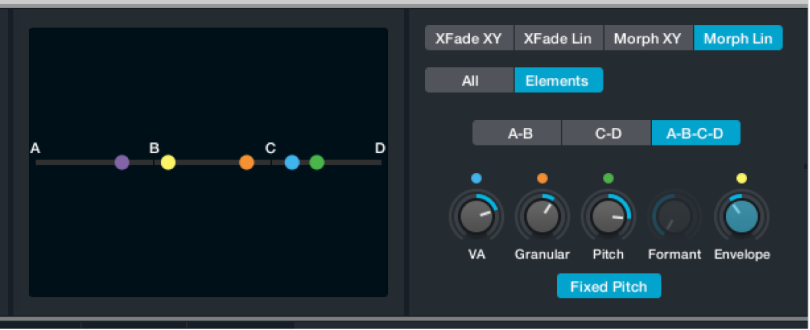
When the note cycle restarts, you will hear the vocal sample “singing” the melody provided by the synth lead phrase in source B. The pitch morph is particularly effective because the source A material contains no chordal content and does not change pitch, and the Source B material has a very clear melodic phrase that the pitch analysis can easily track. In general, files that work well for Flex Pitch in Logic work well for pitch morphing applications in Alchemy. Keep this example loaded for the next task.
Elemental morphing can sometimes lead to sudden and dramatic level changes. Before adjusting the Additive control, click the Global button, then double-click the Volume knobs for sources A and B. This sets them both to -18dB.
Click the Morph button at the left to show the morphing section at the upper right, then click the Morph Lin button, the A-B button, and the Elements button (if required).
Drag the Additive handle (blue dot) to the right while holding C3 on your keyboard. You can also rotate the Additive knob to set this value.
As you move the control, the harmonic partials of the vocal sample transition to the partials of the synth lead. This doesn’t always produce pleasing results because partials in one sound may emphasize noise or artifacts in the other sound. The workflow is often one of sonic exploration in search of happy accidents rather than a predictable process. Play notes and chords above and below C3 as you experiment.
Set the Additive control to approximately 30%, Pitch to 100%, and Formant and Envelope to zero percent.
Click the A button at the left to view source A parameters, click the Additive button at the top right, then rotate the Fundamental knob toward the left.
This attenuates the fundamental partial which brightens the sound by making the higher frequency partials more pronounced.
Turn down the Odd/Even knob to create a more hollowed out sound, emphasizing the partials of the synth lead. Experiment with other controls to get a feel for their effect on the sound. Play octaves and fifths as you experiment.
The Envelope control in the morph section primarily morphs between the timing of sources. This has little effect when files are close in length, but this behavior changes when the playback length of files is altered.
Click the Morph button at the left to show the morphing section at the upper right, then move the Envelope handle (yellow dot) to the far left. You can also use the Envelope knob.
Click the A button at the left to view source A parameters, and click the Edit button at the right of the source filename.
The source A edit window opens.
In the waveform editor at the bottom of the main edit window, drag the E handle to the very end of the audible part of the waveform.
This effectively removes the silence at the end of the vocal phrase by reducing the playback length of the overall file.
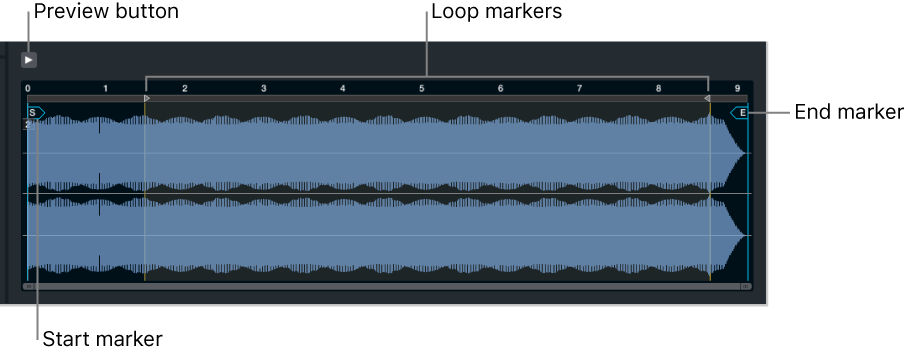
Play C3 on your keyboard, and note that the phrase plays faster because the timing for the sound is currently based on the timing of the vocal sample.
Also note that you can hear the entire synth lead phrase, which no longer fades away at the end. If you move the end marker further left, you can hear the entire phrase of the synth part played faster.
Click the X at the upper right to close the source A edit window.
Return to the morph controls, and adjust the Envelope knob to hear how it affects the behavior of samples with different lengths.
A green arc around a parameter indicates that it is morphed when you move dedicated morph controls. Setting general (non-morph area) parameters to different values for each source provides another technique that can influence morphing results.
Click the source A button at the left, then click the Formant button at the upper right to view the Formant controls. Rotate the Smooth knob to the left until the Amanda vocal starts to break up and sound “fluttery.”
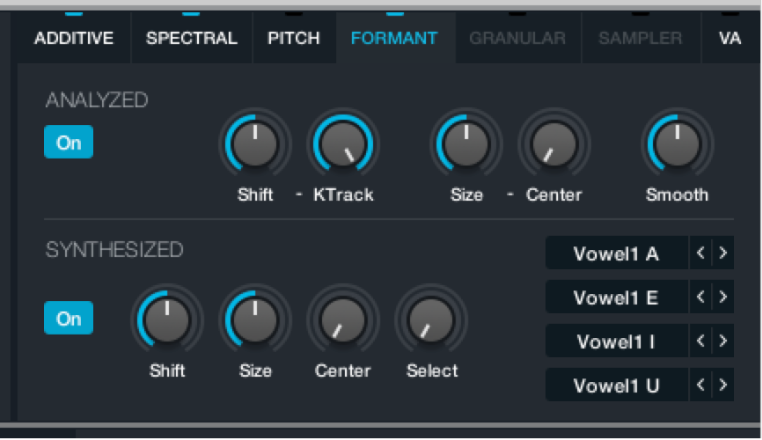
Click the source B button at the left, then click the Formant button at the upper right. Rotate the Smooth knob to the far left.
Click the Morph button at the left to show the morphing section at the upper right, then move the Formant handle (purple dot) horizontally while playing. You can also use the Formant knob to set this value.
You can hear the “fluttery” effect as you move the Formant control to the left, but this disappears as you move it to the right.