
Source components are shown only in advanced view. Click the Advanced button to switch to advanced view, then click the A/B/C/D button to select the source you want to edit.
Each of the four sources has an identical set of controls for more in-depth editing. Several source subpage controls are duplicates of those found in the source master controls. See Alchemy source master controls.
For information on source filter controls, see Alchemy source filters.
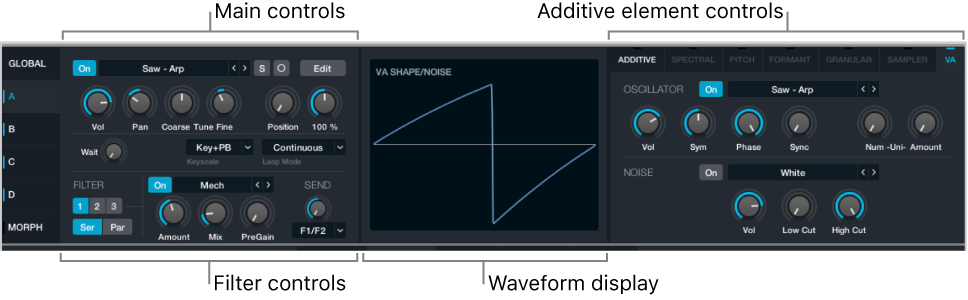
The waveform display and element controls section update to show relevant data and parameters when different synthesis engines are active. The additive element is active for source A in the image.
On/off button: Turn the source on or off.
Source select field: Displays the name of the current source audio data. Click to open a pop-up menu with source content handling commands. See Alchemy source master controls.
Solo button: Isolate the source by turning off all other sources. Click again to restore the on/off status of other sources.
Note: If you save a preset with one source in solo mode, the resulting preset retains the on state of the source, but solo mode is disabled. All other sources are off.
Stereo button: Turn stereo mode on or off. If stereo mode is off and a stereo file is loaded or imported, only the left channel is played. When stereo mode is on, loaded or imported sounds are played in stereo. This makes it possible to pan individual oscillators in the additive element or individual grains in the granular element, for example.
Edit button: Open the source edit window. See Alchemy source edit window overview.
Volume knob: Set the source output level (-inf dB to 0 dB).
Wait knob: Set a delay between the keystrike and triggering of the source.
Coarse Tune knob: Tune the source pitch in semitone increments.
Fine Tune knob: Tune the source pitch in increments of one cent (one hundredth of a semitone).
Position knob: Determine the playback start position in the audio data. A value of 0% denotes the absolute start point of the audio data. A value of 100% indicates the absolute end point. See Alchemy source modulations.
Speed knob: Set the audio data playback rate in additive, spectral, or granular mode. Speed has no effect when the element is set to sampler mode. A setting of 100% represents the original playback rate. Higher settings (up to 500%) represent faster playback, while lower settings (down to 0%) represent slower playback.
Playback begins at the point set with the Position knob and travels through the audio data on a path determined by the Loop mode. Speed determines the rate of this travel. Playback remains at the normal pitch regardless of the rate of travel. Set Speed to 0% to halt playback at the point set with the Position knob.
Keyscale pop-up menu and field: Choose from three key scaling options that affect source pitch response to incoming MIDI data.
Key+PBend: The pitch of the source responds to MIDI note and pitchbend data.
Key: The pitch of the source responds to MIDI note data but does not respond to pitchbend data.
Off: The pitch of the source does not respond to either MIDI note or pitchbend data.
Note: Global pitchbend behavior is determined with the PitchBend Up and Down controls in the master voice section. See Alchemy master voice section.
Loop Mode pop-up menu and field: Choose from five loop mode options that affect playback of the source audio data.
None: Ignores the loop start and end points, and plays the entire sound once without looping.
Continuous: Plays from the beginning, enters the loop region, and loops continuously in a forward direction while a note is held and during the envelope release phase.
Sustain: Plays from the beginning, enters the loop region, loops continuously while a note is held, and exits the loop region to play the normal sound release phase.
Forward/Back: Like Continuous, but plays the loop region alternately forward and backward.
All: Ignores the loop start and end points, and loops the entire sound continuously.
Note: The loop start and loop end points can be edited in the Main edit window. See Alchemy source edit window overview. The VA noise component is not affected by the Loop mode setting.
Waveform overview display: Shows the waveform for the source when the granular or sampler element button is active. The display also shows real-time additive or spectral data, or a representation of the waveform if the Position or Speed controls are selected. When Position is adjusted, a position indicator is shown, allowing you to fine-tune the start position.
Synthesis element buttons: Choose the synthesis type, and view and change related parameters in the area below. A variable combination of the Additive, Spectral, Pitch, Formant, Granular, Sampler, and VA buttons is available for use, depending on the audio data specified in the source select field and the import method used, if applicable. See Alchemy source elements overview and Alchemy import browser.