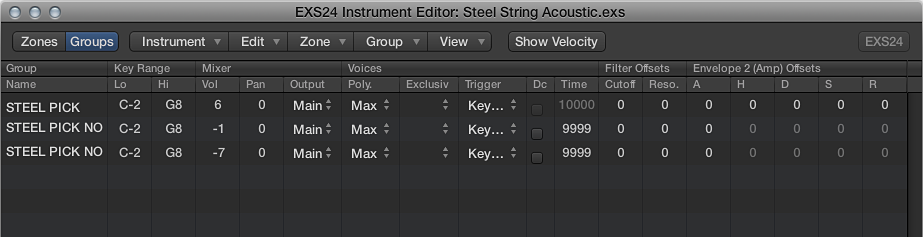

Group parameters provide simultaneous control of all assigned zones.
Group parameters
Group Name field: Displays the group name. Click to enter a name.
Key Range fields: Define a key range for the group.
Lo: Sets the lowest note for the group.
Hi: Sets the highest note for the group. Playing notes outside this range does not trigger the zones assigned to this group.
Note: Take your time with these parameters because as they override zone range settings, possibly making some zones inaudible.
Vol(ume): Adjusts the overall level of the group—and, therefore, the volume of all zones in the group. This works much like a subgroup on a mixing console.
Pan: Adjusts the pan position of the group—stereo balance for stereo samples—and the pan position of all assigned zones simultaneously.
Note: This affects any individual zone panning adjustments.
Output: Determines the outputs used by the group. Choices include the main outputs and paired channels 3 and 4, 5 and 6, 7 and 8, 9 and 10, or individual outputs 11 through 16. This allows individual groups to be routed independently to aux channels in a multi-output EXS24 mkII instance.
Note: This has an impact on any individual zone output assignments.
Poly. (polyphony): Determines the number of voices that the group can play. The Max option ensures that the group uses all voices allowed by the Voices parameter in the Parameter window.
A practical use of the Poly parameter is to set up a classic “hi-hat mode” within a full drum kit that is mapped across the keyboard. For example, you could assign an open and closed hi-hat sample to a group and set the Voices parameter of the group to 1. The most recently triggered of the two hi-hat samples mutes the other because only one voice is allowed for the group. This mirrors the real-world behavior of hi-hats. The other sounds of the drum kit can still be played polyphonically, if samples in zones are assigned to another group.
Exclusiv menu: Assign multiple groups to the same “Exclusive Class.” Groups in the same class can only be used independently. As soon as one group in the class is triggered, all other groups in that same class are disabled. This is much like the Poly parameter, but for groups, rather than zones within a group.
fss (Fixed Sample Select) checkbox: Sample selection is typically triggered by velocity, with a zone for a given velocity being played when a note on is received. If you set up a modulation routing for “Sample Select” with the modulation wheel, for example, EXS starts voices for all velocity layers when an incoming note-on message is received. While the voices are playing you can fade between velocity layers with the mod wheel. If you need to exclude specific groups from fading between velocity layers, turn on the fss parameter. This limits sample selection to the zone triggered by velocity at note-on.
Trigger menu: Determines if zones pointing to this group are triggered on key down (Key Down setting) or on key release (Key Release setting). This is useful for emulating organ key clicks, for example, where you may want the organ note triggered on key down, but the organ click triggered on key release.
Dc (decay) checkbox: Select the checkbox to access the Decay Time parameter.
(Decay) Time field: Determines the time it takes for the level of a sample (triggered by key release) to decay.
Note: The Decay parameters function only when the Trigger parameter is set to Key Release.
Cutoff and Reso(nance) fields: Independently offset the Cutoff and Resonance settings for each group. This can be useful if you want the initial impact of a note to be unfiltered for one group but not other groups.
Envelope 1/Envelope 2 Offsets fields: Independently offset the envelope settings in the Parameter window for each group. This is useful if you want the filter (Envelope 1) or volume (Envelope 2) envelopes to affect the samples in a group—after the initial impact of the triggered sounds.
H(old) field: Determines the time that the envelope is held at the maximum attack level, before the decay phase begins.
Note: When the Trigger parameter is set to Key Release, the Decay Time parameter controls the decay level, rather than Envelope 2 (the volume envelope). This means that when Trigger is set to Key Release, the Envelope 2 Offsets have no effect.
Vel(ocity) Range: Sets a velocity range for the group. Velocity Range is useful for sounds where you want to dynamically mix—or switch between—samples by playing your MIDI keyboard harder or softer. This feature is ideal for layered sounds, such as a piano/string layer, or when switching between different percussion samples.
Lo: Sets the lowest velocity that triggers the group.
Hi: Sets the highest velocity that triggers the group. Playing notes outside this velocity range does not trigger the zones assigned to this group.
Note: The settings made here override zone settings. When a zone velocity range is larger than the group setting, the zone velocity range is limited by the group setting.