There are a number of ways you can select zones and groups for editing.
To make selection easier, you can first use the sort options.
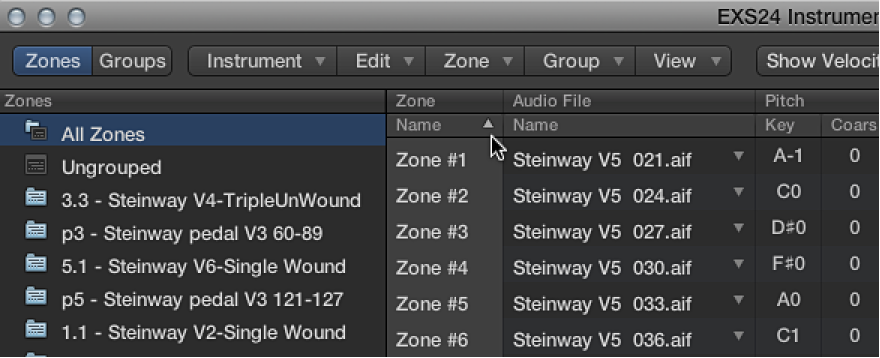
You can easily sort zones and groups in the Instrument Editor. For example, if you want to sort your zones by name, click the Name subcolumn heading in the Zone column and your zones are sorted alphabetically. If you want to sort groups by lowest to highest starting velocity, click the Low subcolumn heading in the Velocity Range column. The group with the lowest starting velocity range is displayed at the top of the list.
Do one of the following:
Click the subcolumn heading that you want to sort by.
Click the triangle to invert, or reverse, the sort order.
Choose one of the following zone and group selection commands from the Edit menu:
Select All: Selects all zones and groups of the loaded sampler instrument.
Toggle Selection: Switches the selection between the currently selected zones or groups and all currently unselected zones or groups.
Click zones and groups in the Parameters area to select them.
To select a single zone or group: Click the parameters of that zone or group.
To select two nonadjacent zones and the zones between them: Shift-click the two nonadjacent zones.
To select multiple nonadjacent zones: Command-click each zone.
Press the Up Arrow key or the Down Arrow key to select the previous or next zone or group.
Choose Select Zone of Last Played Key from the Zone menu to switch between zones by pressing a key on a connected MIDI keyboard. You can continue to select zones by clicking them in the Instrument Editor when this feature is enabled.
Choose Select Group of Last Played Key from the Group menu to switch between groups by pressing a key on a connected MIDI keyboard. This is useful when you want to adjust the velocity of instrument groups, for example.