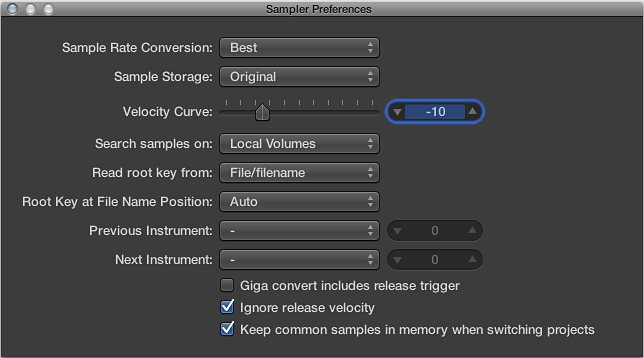

The EXS24 mkII Sampler Preferences window provides access to sample-related preferences, such as sample rate conversion quality, velocity response, sample storage, search-related parameters, and so on.
Sampler preferences
Sample Rate Conversion pop-up menu: Determines the interpolation quality used by EXS24 mkII. Choose Best to maintain the highest possible sound quality when transposing.
Sample Storage pop-up menu: Determines the sample format handling method used by EXS24 mkII.
Original: Loads samples into RAM at their original bit depth. These are converted to the internal 32-bit floating point format of the host application on playback.
32 Bit Float: Samples are stored and loaded in this format. This eliminates the need for real-time format conversions, meaning that EXS24 mkII handles samples more efficiently and can play back more voices simultaneously.
Note: This requires twice as much RAM for 16-bit samples and a third more RAM for 24-bit samples.
Velocity Curve slider: Determines how EXS24 mkII responds to incoming velocity values. Negative values increase the responsiveness to soft key strikes, and positive values decrease responsiveness.
Search samples on pop-up menu: Determines the locations that EXS24 mkII searches for instrument samples. You can choose from:
Local Volumes: Storage media (hard disks and optical mechanisms) attached to or installed in the computer.
External Volumes: Storage media accessible over a network.
All Volumes: Both internal and network media are scanned for appropriate data.
Note: Choosing External Volumes or All Volumes may result in a dramatic increase in the time required by EXS24 mkII to find and load sampler instruments and files.
Read root key from pop-up menu: Sets the method used by EXS24 mkII to determine the root key or velocity (or both) of loaded audio files. You can choose from the following:
File/filename: Initially reads information about the root key/velocity from the audio file itself (in the header of the AIFF or WAV file) when loading it into a zone. If no information of this type exists in the file header, a smart analysis of the filename may detect a root key/velocity. If this second method doesn’t provide useful results, C3 is used as the default root key in the zone.
Filename/file: As above, but the filename is read before the header.
Filename only: Reads from the filename only. If no root key/velocity information exists, C3 is automatically assigned to the zone as the root key.
File only: Reads from the file header only. If no root key/velocity information exists, C3 is automatically assigned to the zone as the root key.
File/Filename/Analysis: Initially reads information about root key/velocity from the audio file itself (in the header of the AIFF or WAV file). If no information of this type exists in the file header, a smart analysis of the filename may detect a root key/velocity. If this method doesn’t provide useful results, the initial transient in the file itself is analyzed for velocity and is applied as the velocity. The root key is derived from the initial pitch. C3 is automatically assigned to the zone as the root key if no pitch is detected.
Filename/File/Analysis: As above, but the filename is read before the header.
Analysis only: Analyzes the file only and applies a velocity based on the initial transient level. The root key is derived from the initial pitch. C3 is automatically assigned to the zone as the root key if no pitch is detected.
Root Key at File Name Position pop-up menu: Normally, EXS24 mkII intelligently determines the root key from the file header of the loaded audio file. On occasion you may want manual control over this parameter, if you feel that the root key is not being properly determined.
Auto: Provides a smart analysis of numbers and keys from the filename. A number in the filename can be recognized, regardless of its format—60 or 060 are both valid. Other valid numbers can range between 21 and 127. Numerical values outside of these are generally just version numbers. A key number is also a valid possibility for this use—C3, C 3, C_3, A-1, A-1 or #C3, C#3, for example. The possible range is C-2 up to G8.
Numeric value: There may be cases where a sound designer has used multiple numbers in a filename, which is common with loops, with one value being used to indicate tempo—“loop60-100.wav,” for example. In this situation, it isn’t clear which, if either, of the numbers indicates a root key or something else: 60 or 100 could indicate the file number in a collection, tempo, root key, and so on. You can set a value of 8 to read the root key at position (letter/character) eight of the filename—namely, the 100 (E6). Alternatively, setting a value of 5 selects the 60 (C3) as the root key position.
Velocity at File Name Position pop-up menu: EXS24 mkII can determine the velocity from the file header of the loaded audio file. On occasion you may want manual control over this parameter, if you feel that the velocity is not being properly determined.
Auto: Provides a smart analysis of velocity from the filename. An abbreviation in the filename can be recognized—pp or ff, for example.
Numeric value: There may be cases where a sound designer has used multiple letters and numbers in a filename, which is common with loops, with one value being used to indicate tempo—“loopff-pp.wav,” for example. In this situation, it isn’t clear which, if either, of the ff/pp values indicates a velocity or something else: ff or pp could be an abbreviation of “fast funk” or “power pop,” for example. You can set a value of 8 to read the velocity at position (letter/character) eight of the filename—namely, the pp. Alternatively, setting a value of 5 selects the ff as the velocity indicator.
Previous Instrument and Next Instrument: Determine which MIDI event type and data value are used for selection of the previous or next instrument.
Choose the MIDI event type from the Previous Instrument and Next Instrument pop-up menus. Choices include Note, Poly Pressure, Control Change, Program Change, Channel Pressure, and Pitch Bend. In the field next to each pop-up menu, you can enter either the note number or the value of the first data byte. If you choose Control Change, the number field determines the controller number.
Important: These commands are unique to EXS24 mkII and are separate from the global Previous/Next Plug-In Setting or EXS Instrument commands. Therefore, you should make sure that you do not assign the same MIDI event for both. If you do this, both commands are executed, which may result in unexpected behavior.
Giga convert includes release trigger checkbox: Determines whether or not the release trigger function of the Gigasampler format is performed by EXS24 mkII.
Ignore release velocity checkbox: Also refers to the release trigger function of the Gigasampler format, and it should always be selected for this purpose. Regardless of whether your keyboard is able to send release velocity, you want your samples played by the release trigger function to be louder or softer than the original sample, or at the same volume, regardless of the initial velocity. When playing with the release trigger, you want the release velocity value to have the same value as the initial velocity value. To accomplish this, you can switch off release velocity.
Keep common samples in memory when switching projects checkbox: Determines whether the samples commonly used, or shared, by two open project files are reloaded when you switch between projects.
Do one of the following:
In the Parameter window, click the Options button, then choose Preferences from the pop-up menu.
In the Instrument Editor window, choose Edit > Preferences.