Mute a kit piece
Place the pointer over the drum cell, then click the M button that appears.
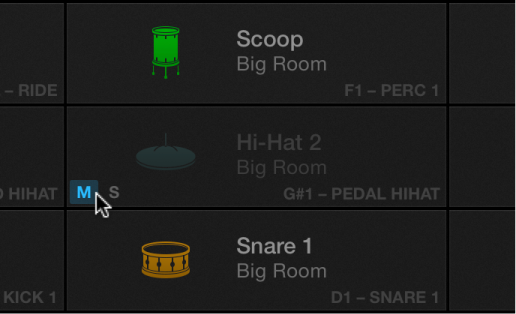
The muted cell is dimmed.

Drum Machine Designer shows a grid representation of the electronic drum kit for the currently loaded patch. Each cell represents a drum kit piece.
You can play the drums, mute and solo kit pieces, and can edit a number of settings for each kit or kit piece.
You can also exchange the entire kit or individual kit pieces and can reorder kit pieces.
Note: Some drums are only available after you download additional content.
Click a drum or kit piece icon.
Place the pointer over the drum cell, then click the M button that appears.
The muted cell is dimmed.
Place the pointer over the drum cell, then click the S button that appears.
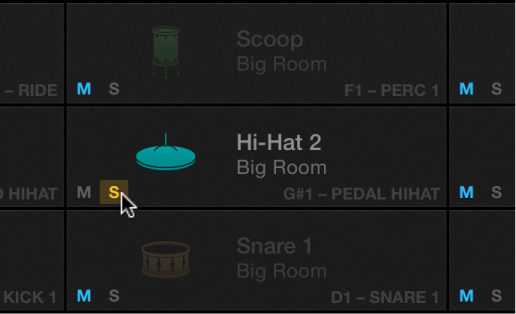
All other cells are dimmed.
Smart Controls parameters let you change the level of sound groups within the kit and also provide a number of sound processing and effect options that affect the entire kit.
Click the plug-in header area.
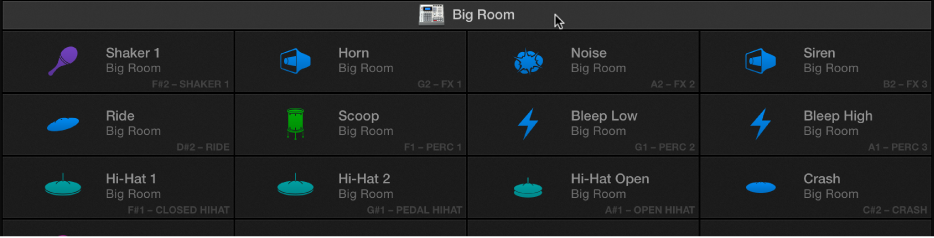
Adjust the Smart Controls parameters for the drum kit.
Smart Controls parameters let you change the sound characteristics and level of each piece in your kit.
Click the kit piece that you want to edit.
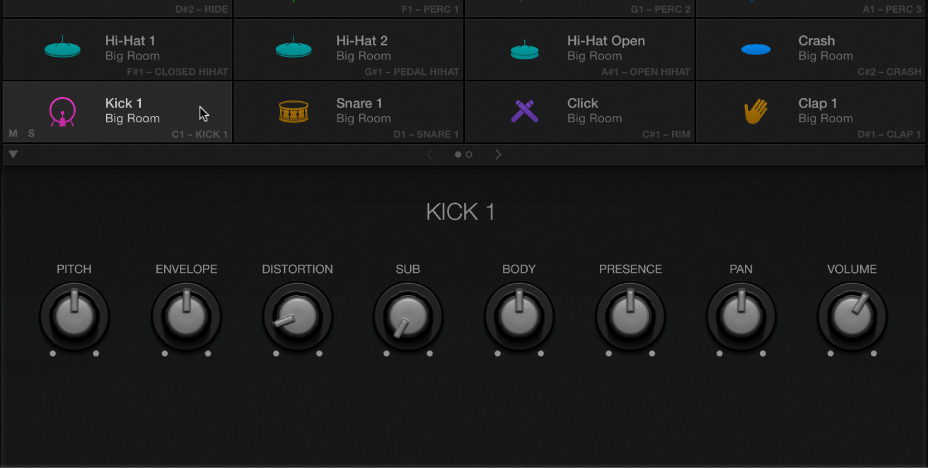
Adjust the Smart Controls parameters.
Move a kit piece by dragging.
This affects the visual display but has no effect on playback.
Click the plug-in header area.
Click a patch in the Library to load that drum kit.
Click a drum cell.
Do one of the following:
Click a patch in the Library to exchange the kit piece.
Drag an audio file from the Finder onto the cell. Files can be in AIFF or WAV format.