
Create a modulation routing
Click the mod label of the parameter you want to modulate.
Choose a modulation source from the mod pop-up menu.
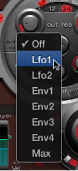
Off: Deactivates the mod routing, and the mod control can no longer be adjusted. In this situation, no via modulation can occur either, because via no longer has a modulation target, and the via control disappears.
Lfo1-Lfo2: Choose one of the LFOs (low frequency oscillators) as the modulation source.
Env1-Env4: Choose one of the envelope generators as the modulation source.
Max: Produces a static modulation at maximum level. When the mod value is set to Max, the via parameter is routed directly to the modulation target. Velocity can then be used as a direct modulation source, even though Vel is not available as a source in the mod pop-up menu.
Tip: You can also set up an external MIDI fader unit with Ctrl A, B, C, or D (see Assign Ultrabeat MIDI controllers A–D). Use the Max menu item to route a via source—Ctrl A, B, C, or D—to the parameter you want to control with a fader on your MIDI fader device.
If you want to assign a via source, choose one of the following from the via pop-up menu.
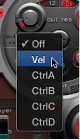
Vel: Velocity is used as the via modulation source.
CtrlA to CtrlD: Choose one of these continuous controllers that can be assigned to four external MIDI controllers. These assignments apply to all sounds in the current Ultrabeat plug-in instance. See Assign Ultrabeat MIDI controllers A–D.
Adjust the mod and via controls.